Dataverse - How to set yes no values with checkbox- Walkthrough

A frustrating problem that app builders encounter is that when building forms against Dataverse yes/no columns, using a checkbox to set the value isn't straightforward.

This post walks through an example of how to set Dataverse yes/no fields with a checkbox.

Setting up an example app and form

For this example, let's take a table called 'Project' with a yes/no field named 'IsUrgent'.

From the Apps section of the Power Apps portal, we'll select the 'Start with data' option to create an app based on the Project table.

The generated app uses a combo box in the form to display the IsUrgent field; there is no way to select a checkbox.
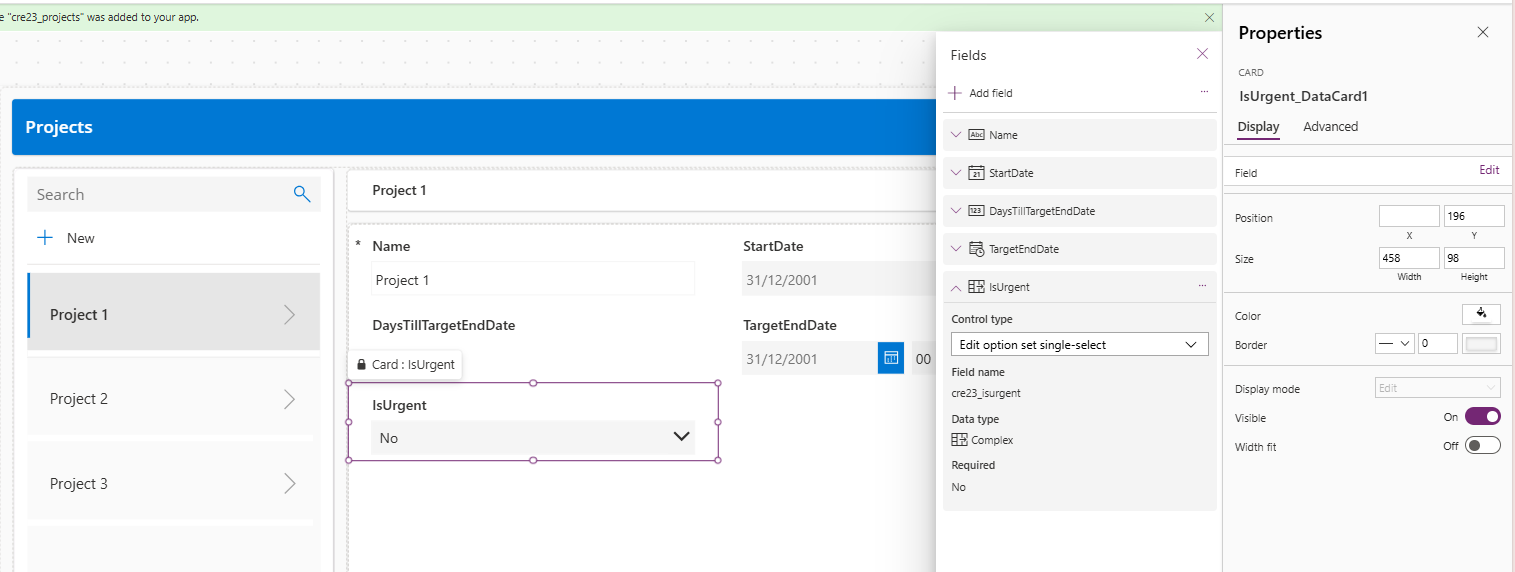

Here are the steps to convert the combobox to checkbox.

Step 1 - Replace the combobox with a checkbox

From the designer, unlock the card and delete the combobox control.

Insert a checkbox control called chkIsUrgent

There will be 2 errors in the form related to the missing combobox control. For the Y property of the Error Message label (shown below), we can replace the reference to DataCardValue4 (the deleted combobox control) with chkIsUrgent.

chkIsUrgent.Y + chkIsUrgent.HeightCode
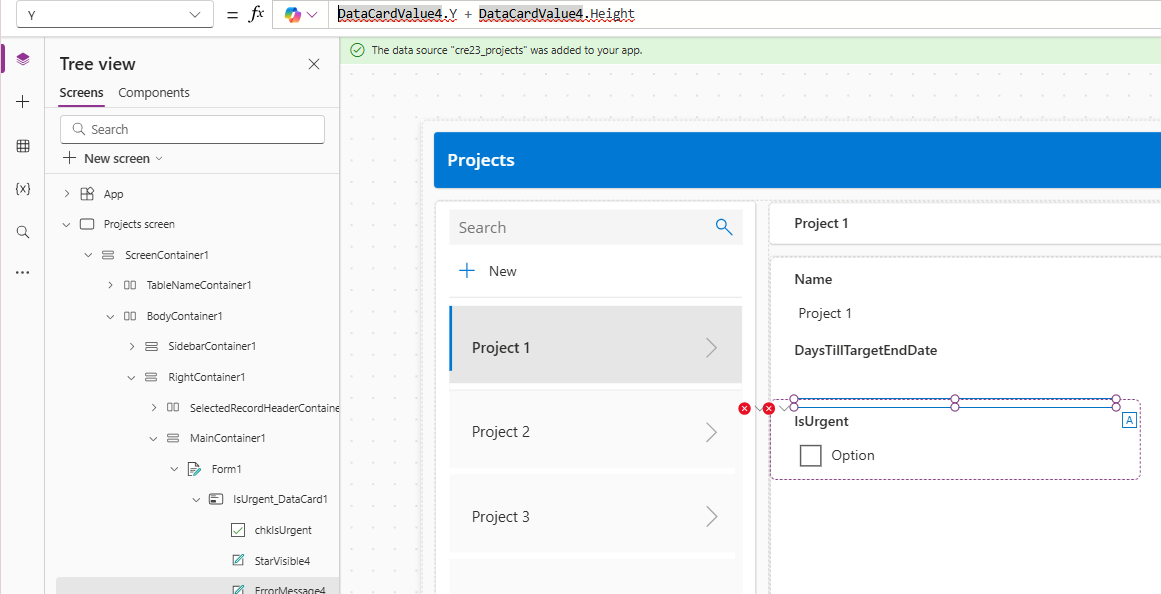


Step 2 - Configure the Update property of the card

The next thing to correct is the Update property of the Card as shown below. This property sets the data value of the field when a save operation occurs.

If(chkIsUrgent.Value = true,
'IsUrgent (Projects)'.Yes,
'IsUrgent (Projects)'.No
)
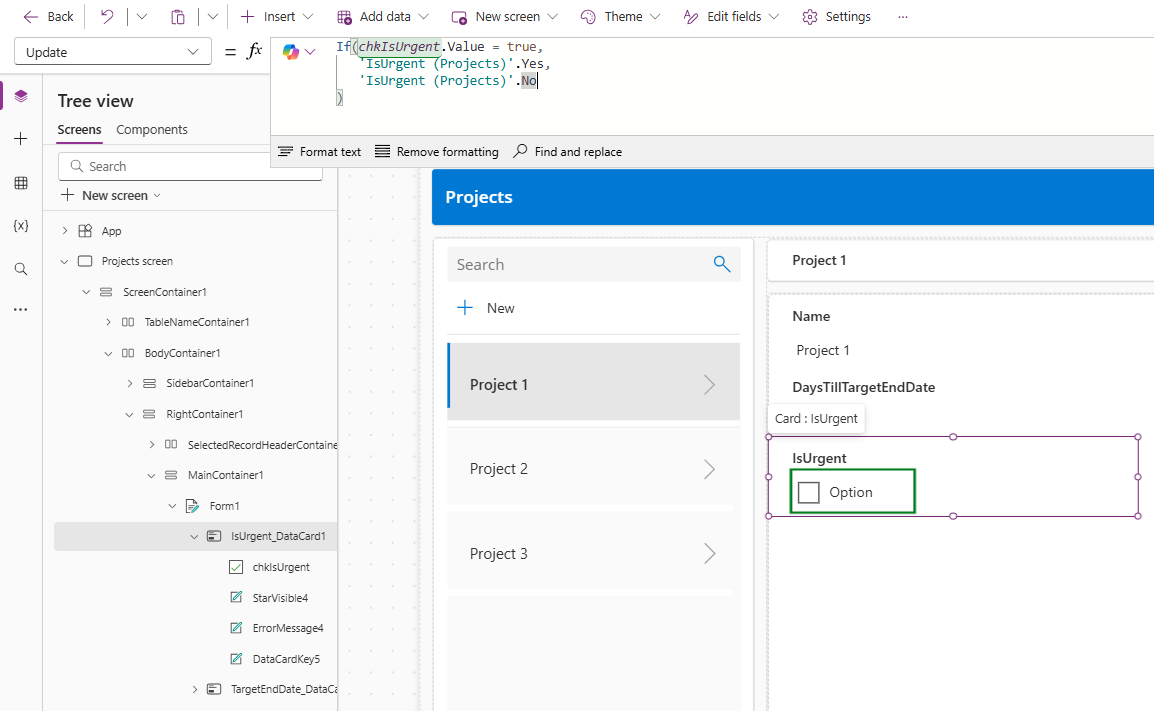


The code above uses an If statement to check the value of a checkbox. If the checkbox is checked, we set the update value to 'IsUrgent (Projects)'.Yes. This is the syntax that's used to represent the Yes value for the field.
 
If you were re-creating this example for a different table, you would need to use this syntax to represent yes and no values

  • 'YesNoFieldName (TableName)'.Yes
  • 'YesNoFieldName (TableName)'.No

Step 3 - Configure the Default property of the checkbox

The final step is to set the Default property of the checkbox. This is the setting that controls the value that's displayed when loading an existing record.

If (ThisItem.IsUrgent = 'IsUrgent (Projects)'.Yes, true, false)
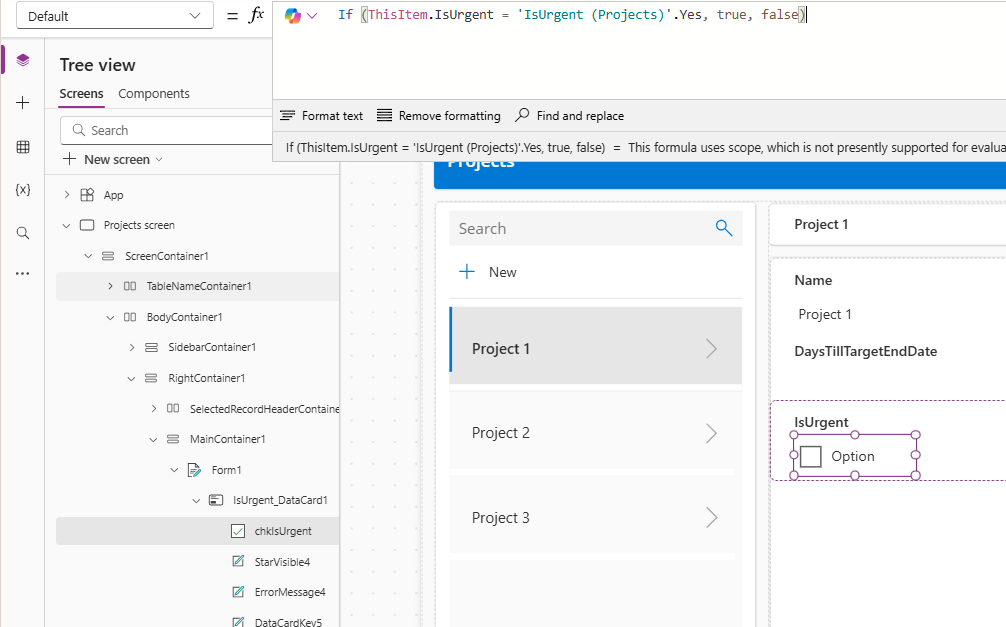


At this point, we can run our app and use the checkbox to set the yes/no field.

Conclusion

Setting a Dataverse yes/no field with a checkbox isn't straightforward. This post walked though an example of how to convert a combobox on a form to a checkbox.

Related posts

Dataverse - Add image column missing when creating table - how to fix
January 19, 2025
Data - How to view the progress and status of a Dataverse CSV/Excel Import
January 15, 2025
Error - Diagnosing the error "Network error when using the Patch function" when saving data with a form
May 05, 2024
Dataverse - How to work around the error "multiple levels of many-to-one relationship expansion aren't supported"
April 05, 2024
Dataverse - The easiest way to modify Dataverse data outside of Dataverse and Power Apps
February 18, 2024
Dataverse - How to use a checkbox control a set a yes/no field in Dataverse
July 10, 2023
Dataverse - How to create Entity Relationship diagrams
January 22, 2023
Dataverse - How you can more quickly bulk update data using the SQL language
January 14, 2023
Dataverse - How to fix the bug in the 'Business Rules' editor that prevents numeric values from saving
January 05, 2023
Dataverse - What are the benefits, and how to create formula columns
July 20, 2022
Dataverse - How to sort the available choice items from a choice column
May 12, 2022
Error - Unable to modify Dataverse tables with error message, Language id should not be null
September 27, 2021
Dataverse - How to retrieve FetchXML or SQL for Dataverse views
July 13, 2021
Data - Why is Dataverse so fast?
June 15, 2021
Dataverse - How to create and use Dataverse views in Canvas Apps
June 09, 2021
Dataverse - How to filter Dataverse choice columns
June 07, 2021
Dataverse - How to switch to the classic designer when the option is not available
May 26, 2021
Licensing - What are Dataverse Restricted tables?
March 26, 2021
Media - How to save and work with microphone recordings
March 09, 2021
Dataverse - how to access tables from another environment
February 23, 2021
Dataverse - How to Patch the 5 most complex data types
January 19, 2021