PowerUp - How to Overcome Import from Excel Bug - Couldn't Resolve GUID Lookup Field
A recurring problem from PowerUp students attempting the app challenge is a bug when importing data from Excel. The import process generates the error 'couldnt resolve guid lookup field' when importing from Excel.
This post describes the issue and describes the workaround that enables the continuation of the challenge.
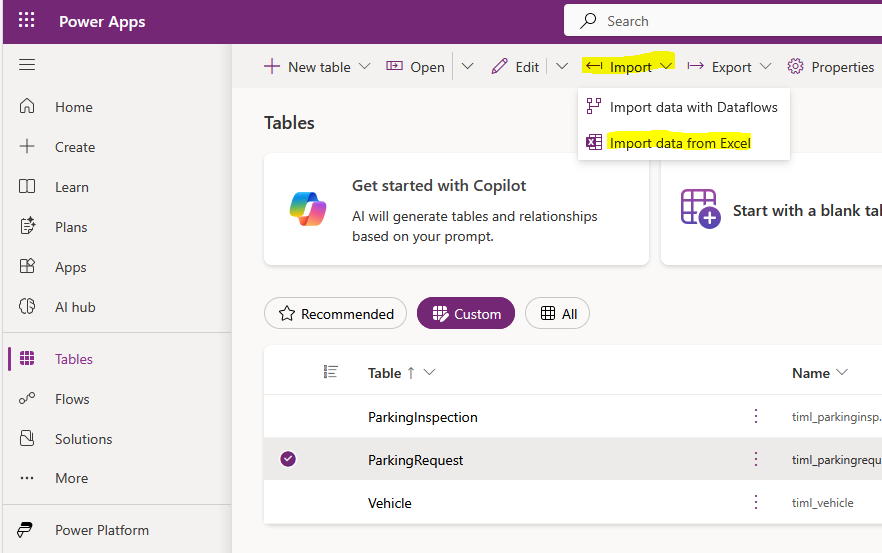
Here's a recreation of how this error occurs. We start by clicking the Import > Import data from Excel menu item.
 When we use this technique to import the data, the process will generally succeed in the cases where it failed using the previous technique shown.
This post describes the issue and describes the workaround that enables the continuation of the challenge.
Here's a recreation of how this error occurs. We start by clicking the Import > Import data from Excel menu item.
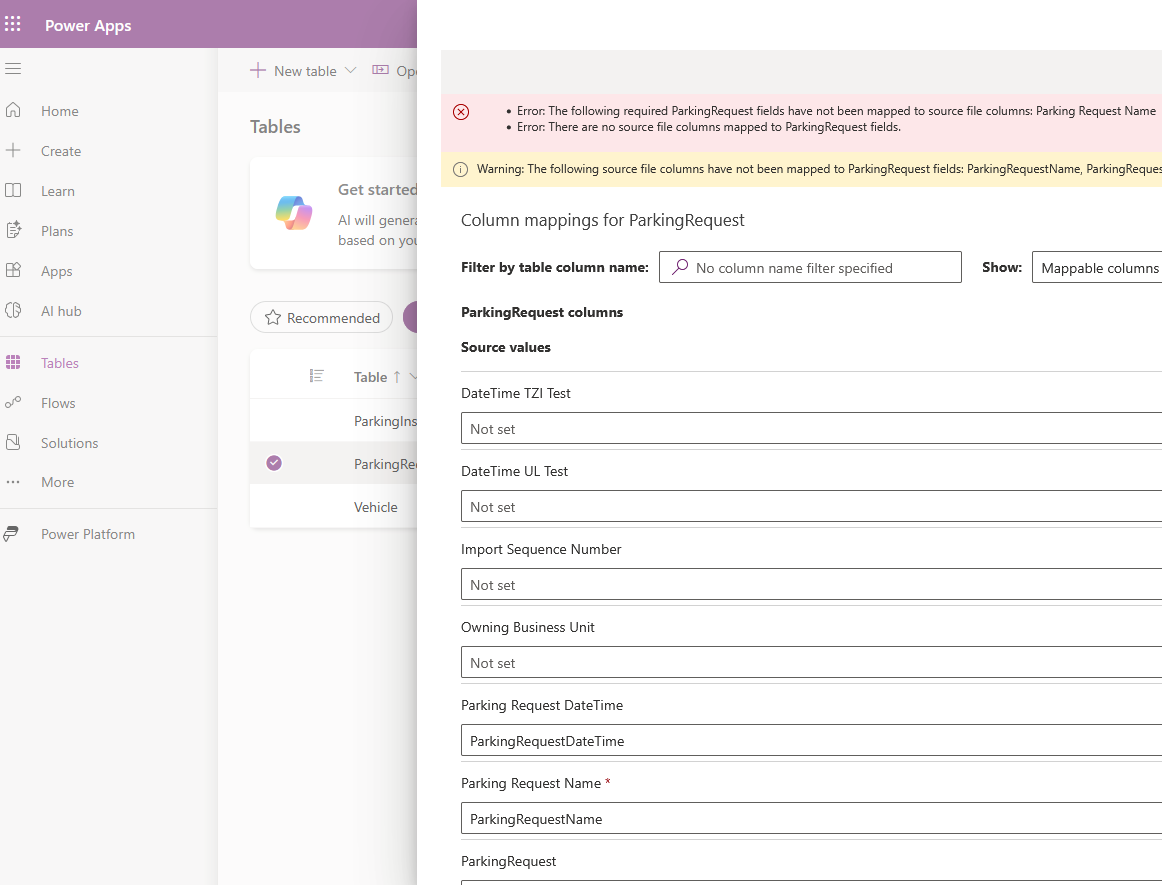
This opens a series of steps where we first select our target table and upload the Excel file to import. For the PowerUp challenge, we select the Parking Request table. Next, we complete the mappings and click the button to import the data.
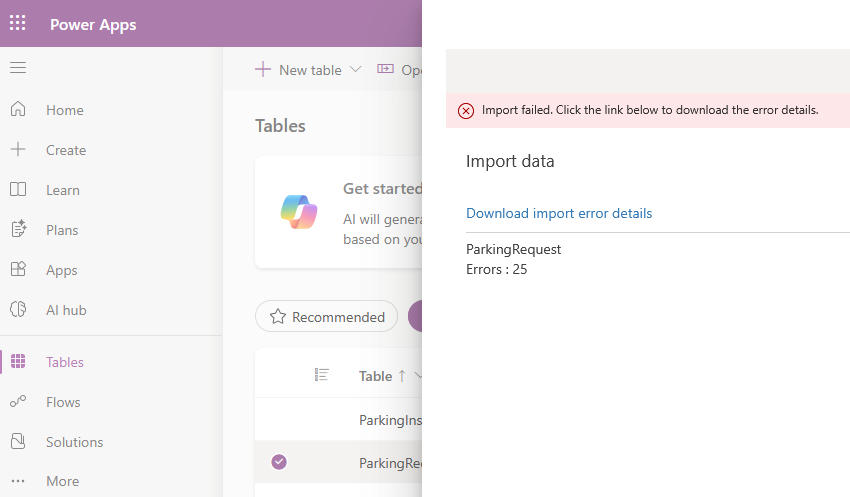
The import process then completes with an error. In this example, 25 errors were reported.
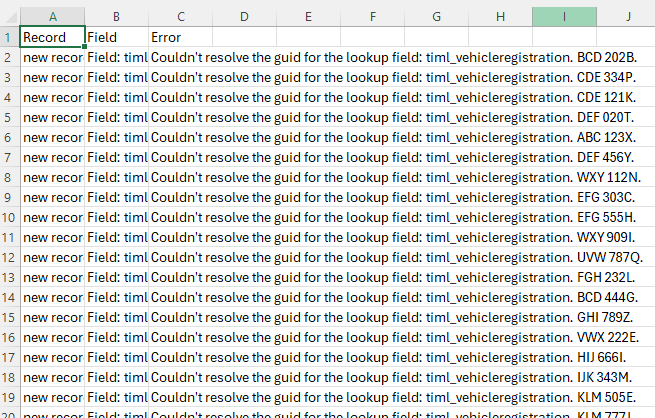
If we examine the errors, the output reports that the associated Vehicle record is missing.
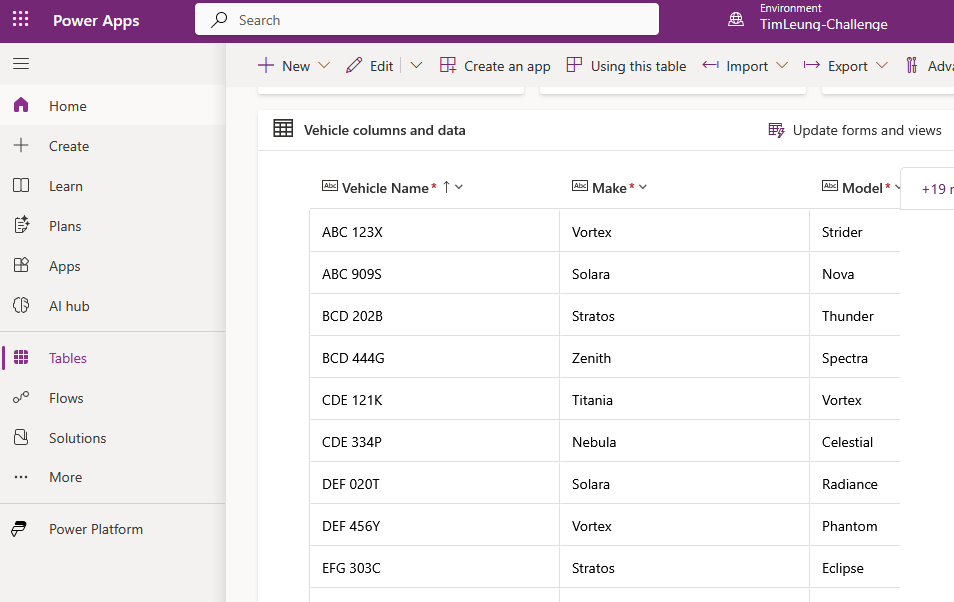
However when we examine the Vehicle table, we can see all the missing records.
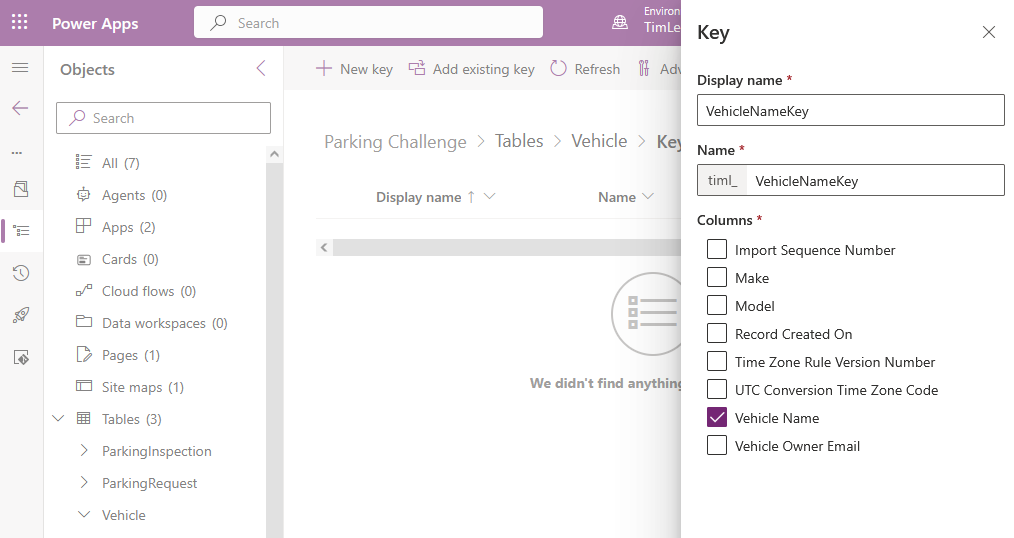
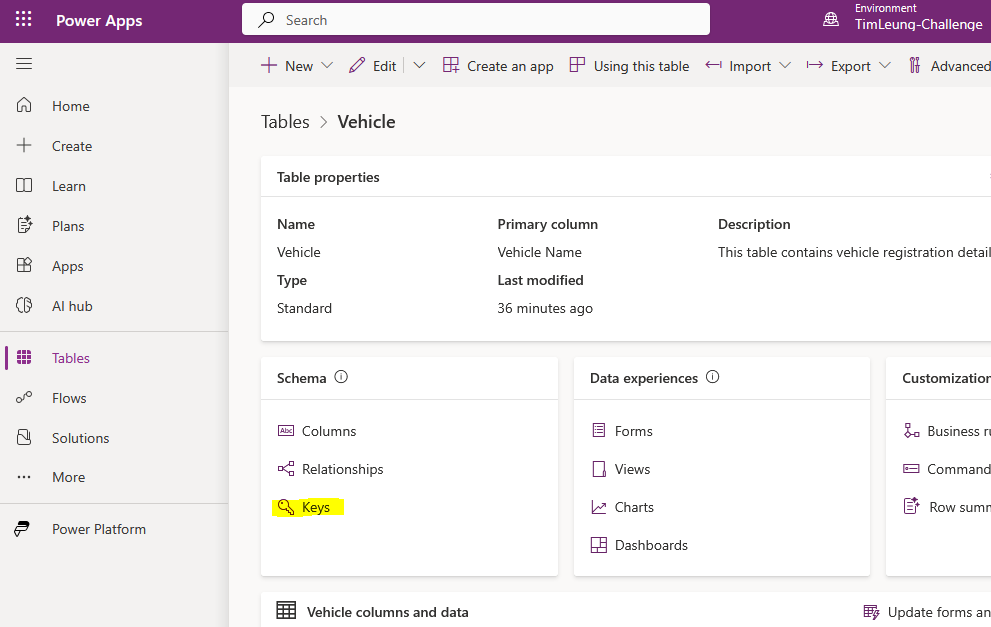
The first step to diagnose this issue is to check the keys on the Vehicle table.
We find however that the correct key has been setup on the 'Vehicle Name' column (the column that stores the registration number).
There is obviously a bug in the import process as the related records definitely exist.
How to Import Data into Excel
Given this bug, how do we import the data in order to complete the challenge?
The answer is to import the Excel data through the model driven app. This matches the technique that's shown in the training video. The screenshot beneath shows where to find this option. Make sure that you're running an instance of the app that you started by clicking the 'play' button, or that you're running a deployed version. If you attempt to import the data from the app that's open in the designer, the process won't work.
When we use this technique to import the data, the process will generally succeed in the cases where it failed using the previous technique shown.Conclusion
If you're doing the PowerUp challenge and unable to import the data due to the error 'couldn't resolve guid lookup field', importing it from the model driven app should resolve the problem.
