Canvas Apps - The easiest way to show Confirmation Dialogs
How to Show a Confirmation Dialog - Walkthrough
To demonstrate how this new feature works, here's a screen that I created in a canvas app with the 'Table and form' template.
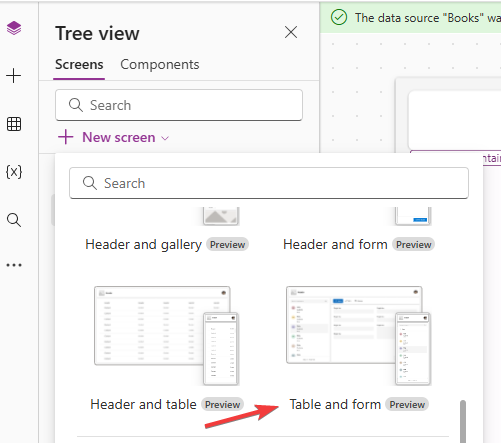
After creating this screen, I set the data source of the table and form controls to a Dataverse table called 'Books'.
This screen template already includes a delete button, as shown in the screenshot beneath.
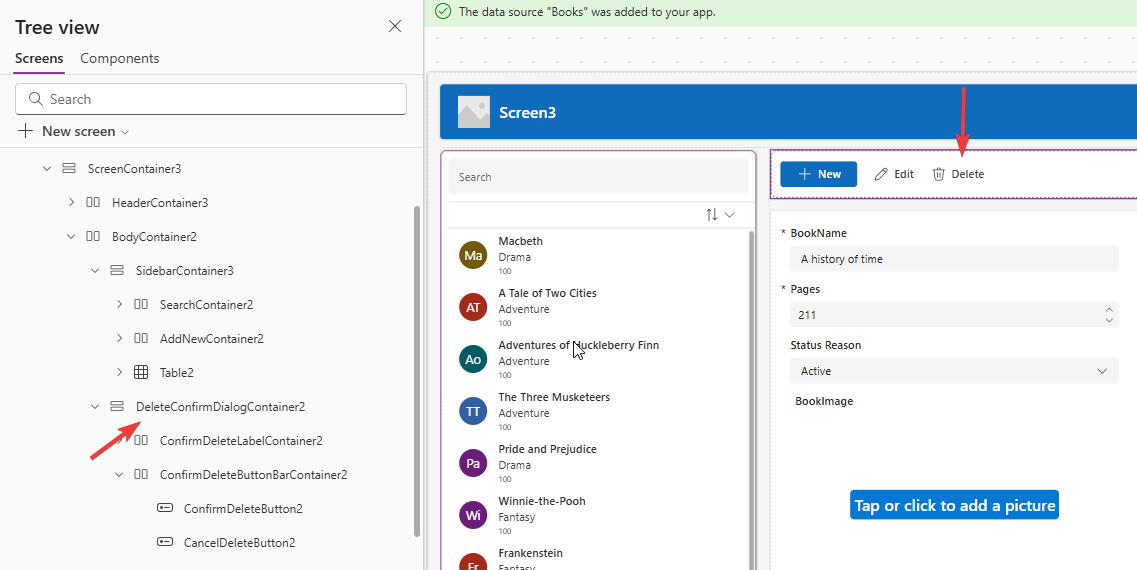
Notice how this screen template includes DeleteConfirmDialogContainer. Prior to the new Confirm dialog, the content here is what would need to be created we wanted to display a confirmation dialog using the traditional method.
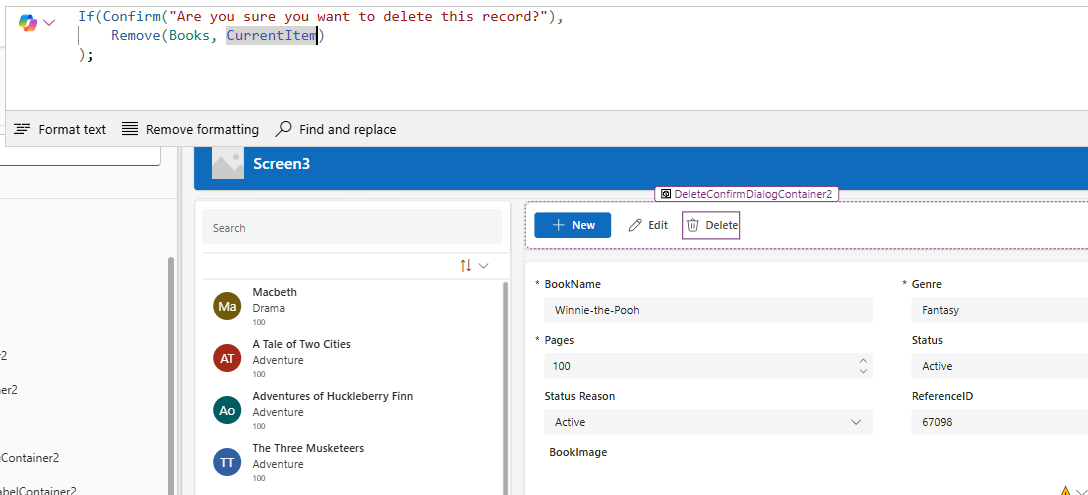
To use the new confirmation dialog, we can set the OnSelect property of the delete button using this syntax.
If(Confirm("Are you sure you want to delete this record?"),
    Remove(Books, CurrentItem)
);
To test this, we can now run the screen and click the delete button. The confirmation dialog will appear, as shown below.
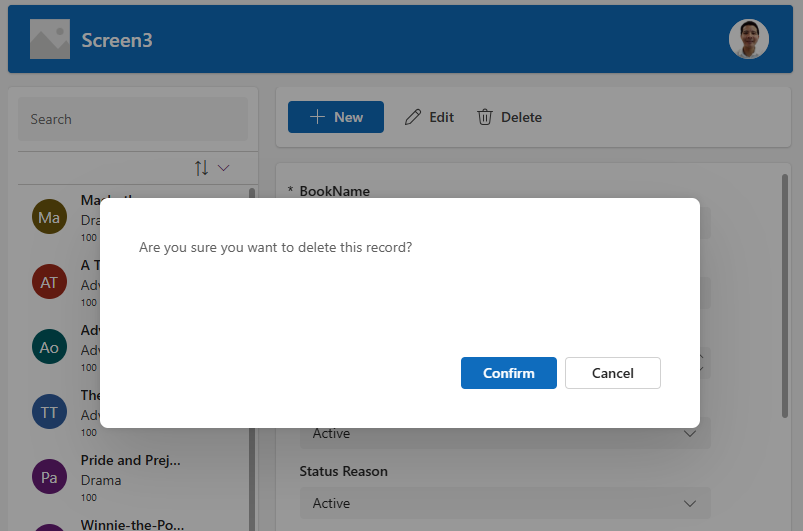
Clicking the Confirm button will now call the Remove function to delete the record.
How to Customise the Confirmation Dialog
To customise the appearance of the dialog, we can pass a record to the Confirm function. This enables us to set a title, subtitle, and the text that appears on the buttons. The syntax to set these values look like this:
If(Confirm("Are you sure you want to delete the record '" & CurrentItem.BookName & "'?",
            {
            Title: "⚠ Delete confirmation",
            Subtitle: "This action can't be undone.",
            ConfirmButton: "Delete",
            CancelButton: "Cancel"
        }),
    Remove(Books, selectedRecord)
);
The colour of the 'confirm' and 'cancel' buttons will inherit the theme colour of the app, so the only way to change those would be to change the theme.
Here's a screenshot of how these elements look at runtime.
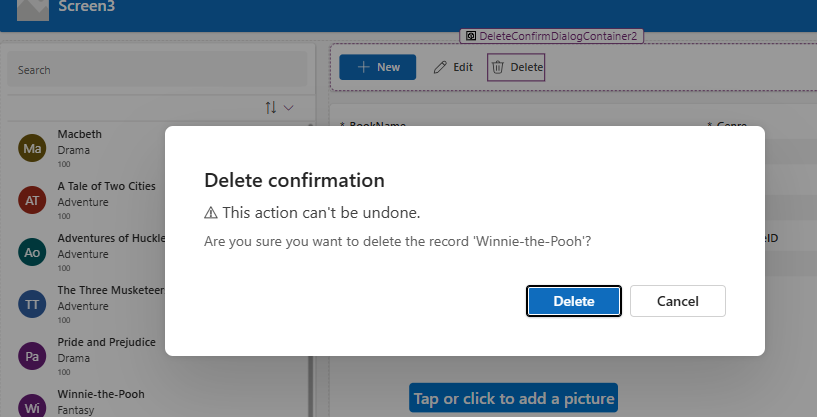 In the screenshot above, note how we can insert emoji symbols like ⚠ into the dialog. In Windows, we can use the