Example - How to use a drop down control to convert currencies
This post walks through how to display an input value in a different currency by using a drop down control. The user can select a currency from the dropdown and the result will appear in a label.
Creating a table of exchange rates
Adding the currency drop down control to a form
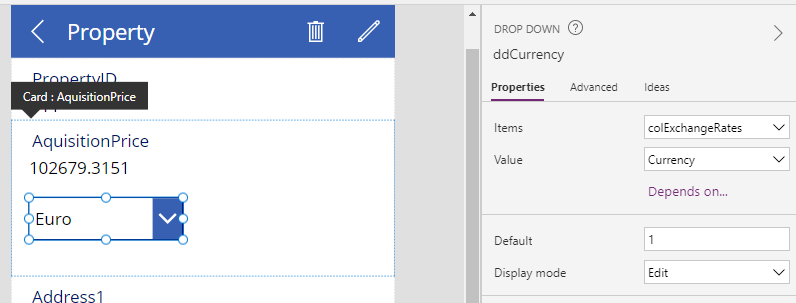
From our app, we can then add a drop-down control (ddCurrency) and set the Items property to colExchangeRates.
This example caters mainly for organisations
with standard Microsoft 365 licensing. For organisations with access to Dataverse, Dataverse includes built-in functionality that takes care of currency conversions.
Creating a table of exchange rates
The key thing that's required is a table of currency exchange rates. A good place to store this data is in a SharePoint list.
To support this, we can build some external processes to keep these values up to date. There is a good blog post by Ryan Maclean on how to do this with Power Automate and custom connectors.
https://ryanmaclean365.com/2020/02/13/exchange-rate-conversion-with-power-automate/
For this example, we'll create a collection that stores the exchange rate values using the formula beneath. This collection stores the exchange rate from US dollars. We can add this formula to the OnStart or OnVisible properties of the app or screen respectively.
ClearCollect(
     colExchangeRates,
     {
       Currency:"Euro",
       Rate:1.01423
     },
     {
       Currency:"British Pound",
       Rate:0.88539
     },
     {
       Currency:"Indian Rupee",
       Rate:80.908139
     },
     {
       Currency:"Australian Dollar",
       Rate:1.505248
     },
     {
       Currency:"Canadian Dollar",
       Rate:1.345757
     },
     {
       Currency:"Singapore Dollar",
       Rate:1.416514
     },
     {
       Currency:"Swiss Franc",
       Rate:0.978288
     },
     {
       Currency:"Malaysian Ringgit",
       Rate:4.566888
     },
     {
       Currency:"Japanese Yen",
       Rate:141.501547
     },
     {
       Currency:"Chinese Yuan Renminbi",
       Rate:7.061676
     }
)
Adding the currency drop down control to a form
From our app, we can then add a drop-down control (ddCurrency) and set the Items property to colExchangeRates.Note that in this example, the form is a display form and therefore, we must set the display mode of the data card to make the drop-down control selectable for the user. The dropdown control will be disabled if we fail to do this.
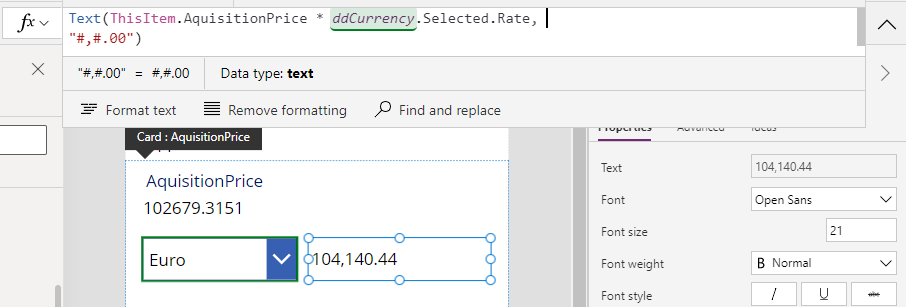
Next, we can add a label and multiply the target value by the selected rate in the drop-down control like so:
ThisItem.AquisitionPrice * ddCurrency.Selected.Rate
We can also incorporate a call to the Text function to format the result more cleanly.
At runtime, the user can now use the dropdown to display the value in one of the available currencies.
