Data - How to group data in a gallery and calculate sums
Calculating and displaying the sums of values in galleries can help users better understand the data and make better-informed decisions. The problem is that the formula to carry out this task may not be obvious. Therefore, this post describes a method to display data in a gallery and to show the sums of values.
Example Data Structure
To demonstrate, let's take the following two tables which provide a typical example of a parent-child data structure. A 'Customer' table stores customer details and a region. The 'Orders' table displays the orders that are related to each customer.
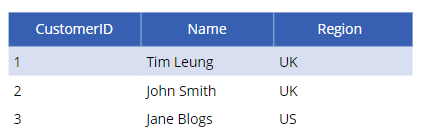
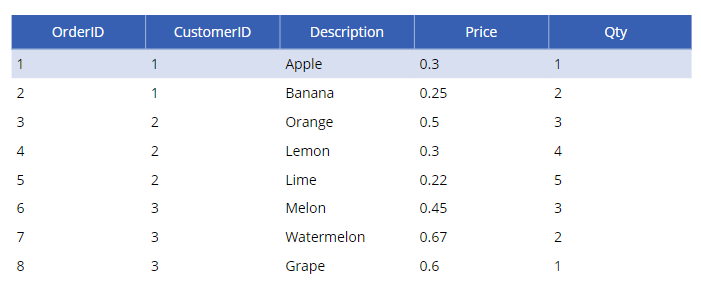
In the remainder of this post, we'll walk through how to display this data in a gallery control and how to show the sum of the order prices by customer.
Showing parent records in a gallery
To begin, we'll add a gallery control to display the customer details. To do this, we add a gallery control and set the Items property to the customer table, as shown in the screenshot below. 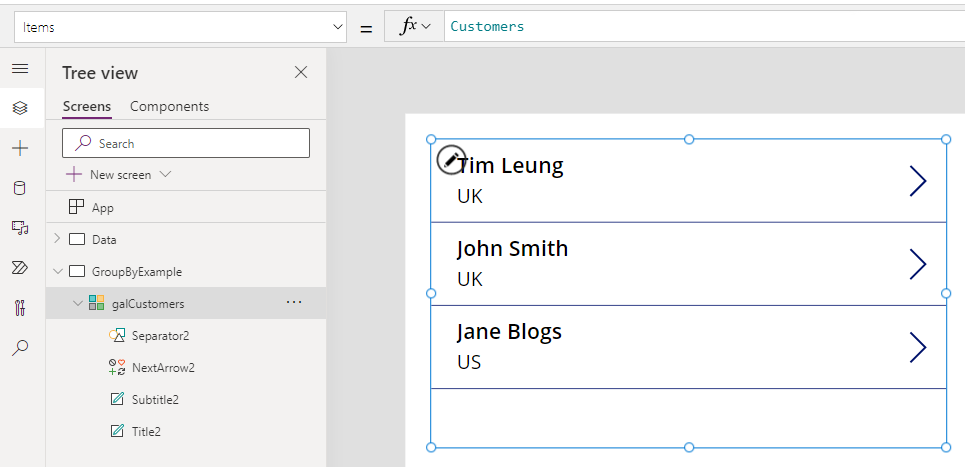
To display the related order records for each customer, we add a nested gallery inside the customer gallery. In this example, the name of the gallery is galOrders.
To do this, we set the Items property of the gallery to the following formula. This filters the gallery to return Orders where the CustomerID of the Customer record matches the CustomerID in the Orders table.
Filter(Orders, ThisItem.CustomerID=CustomerID)
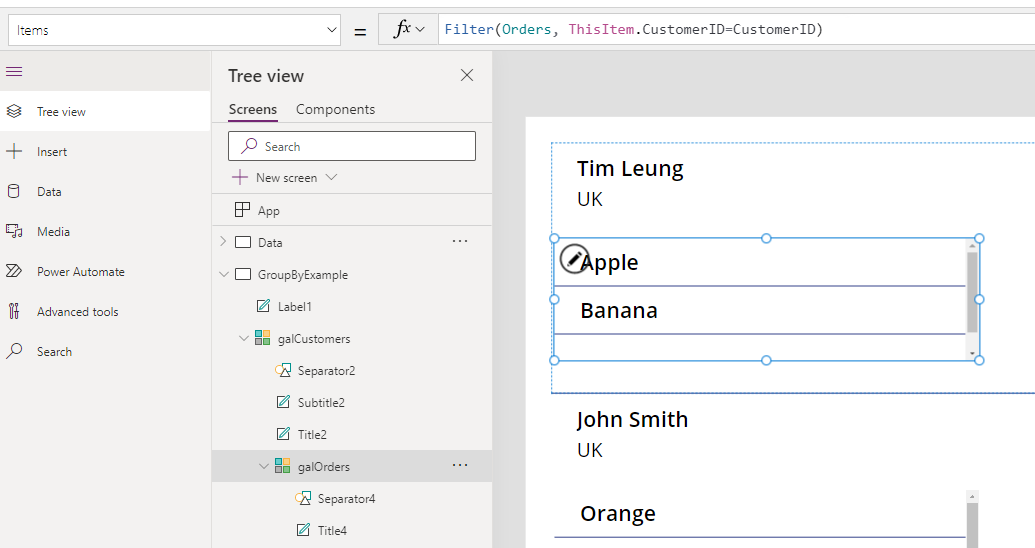
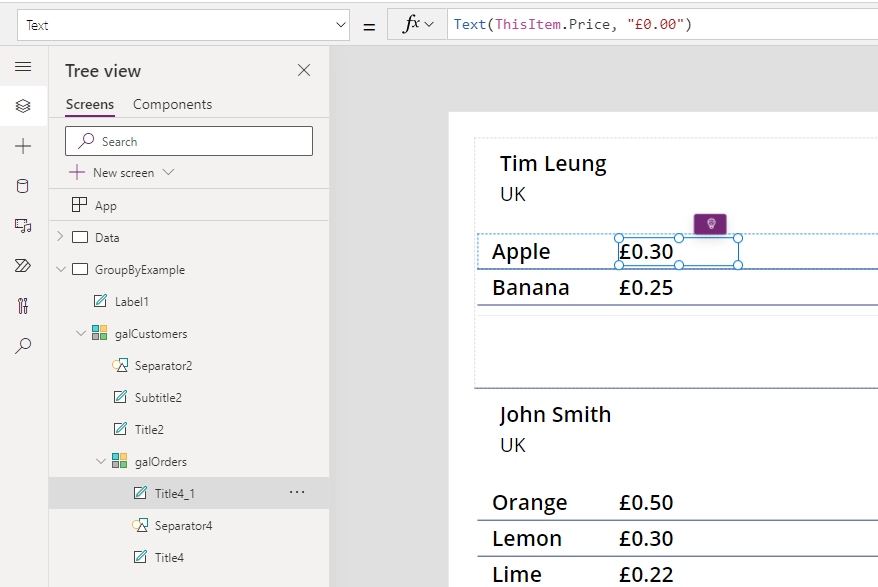
From the nested galOrders gallery, we can add a label and display the Price field. As the screenshot beneath highlights, we can format the price value with a currency symbol and to display 2 decimal places with the following syntax:
Text(ThisItem.Price, "£0.00")
How to show a subtotal of gallery values
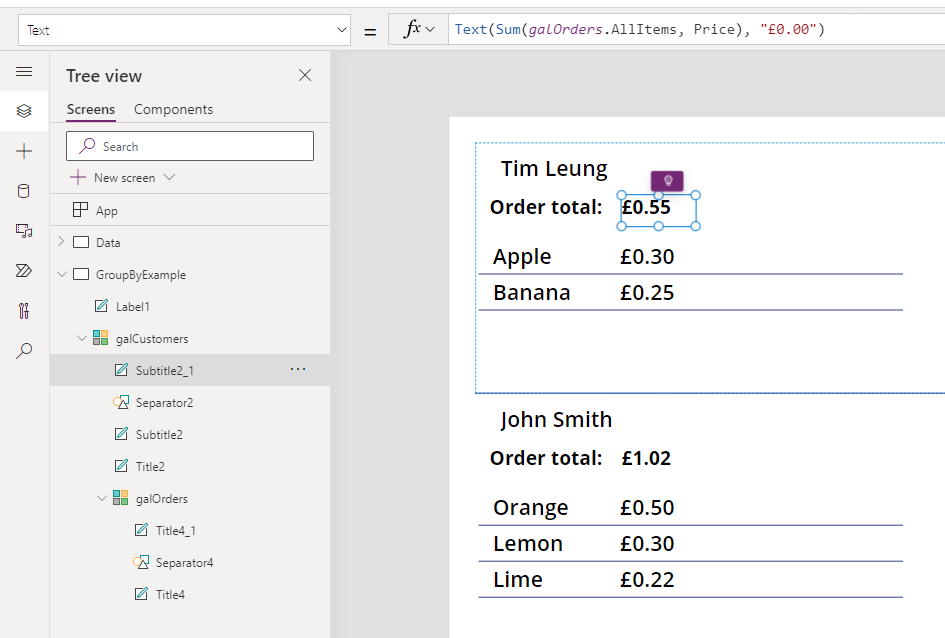
To display the sum of the order prices grouped by customer, we can add a label to the parent galCustomers gallery. We can then use the following syntax to calculate the sum.
Sum(galOrders.AllItems, Price)With this formula, we call the Sum function against the datasource galOrders.AllItems. For each row in galCustomers, galOrders.AllItems returns the related order records since galOrders is filtered by CustomerID.
Text(
   Sum(galOrders.AllItems, Price),
   "£0.00"
)
The screenshot below shows the final result.
.
Conclusion
A common requirement is to show a group of records in a gallery and to display a sub-total of values. This post walked through a technique to carry out this task.
