PowerUp - How to fix "Missing Permissions" error in Microsoft Copilot Studio
An interesting problem I encountered this week related to a PowerUp student who was unable to access Copilot Studio.
When navigating to https://copilotstudio.microsoft.com, an error message appeared showing the following missing permissions - `prvReadbot`, `prvWritebot`, `prvReadbotcomponent`, `prvWritebotcomponent`, and `prvReadSolution`.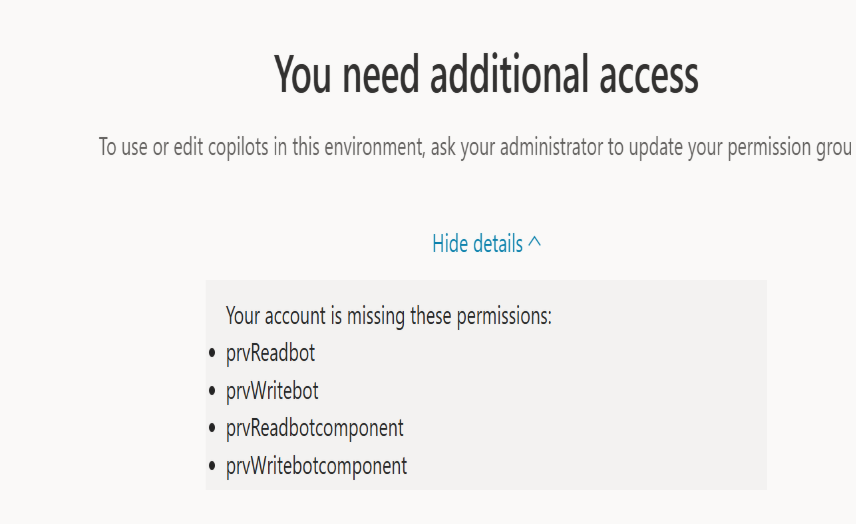 The cause of this error is that access to the default environment is restricted for students and it's necessary to switch to a developer environment. Under normal circumstances, we can switch environments using the environment switcher shown in the top right of the screen (highlighted below).
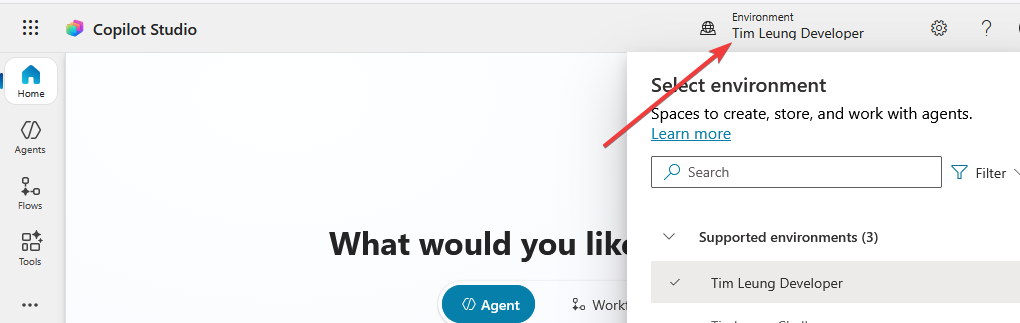
The problem is that when a permissions error occurs, the banner that shows the environment switcher doesn't appear. So how can we switch environments under this cirmunstance?
In Power Apps, we will see the Environment ID in the address bar (shown below). This will be a GUID in the format `xxxxxxxx-xxxx-xxxx-xxxx-xxxxxxxxxxxx`. Make a note of this ID.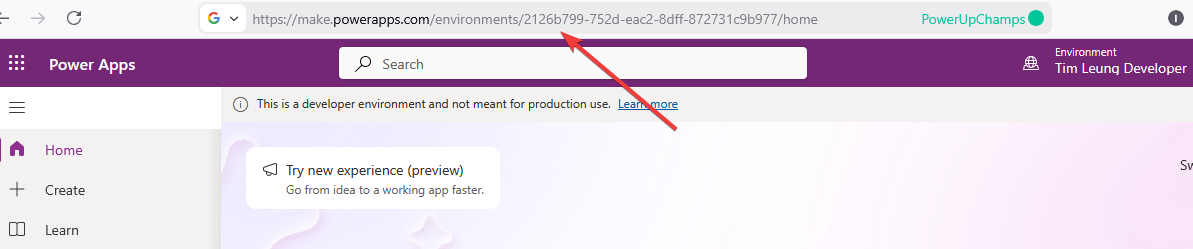
Next, navigate to the following URL, replacing <YOUR_ENVIRONMENT_ID> with your ID from above.
This should then successfully open Copilot Studio, as shown below.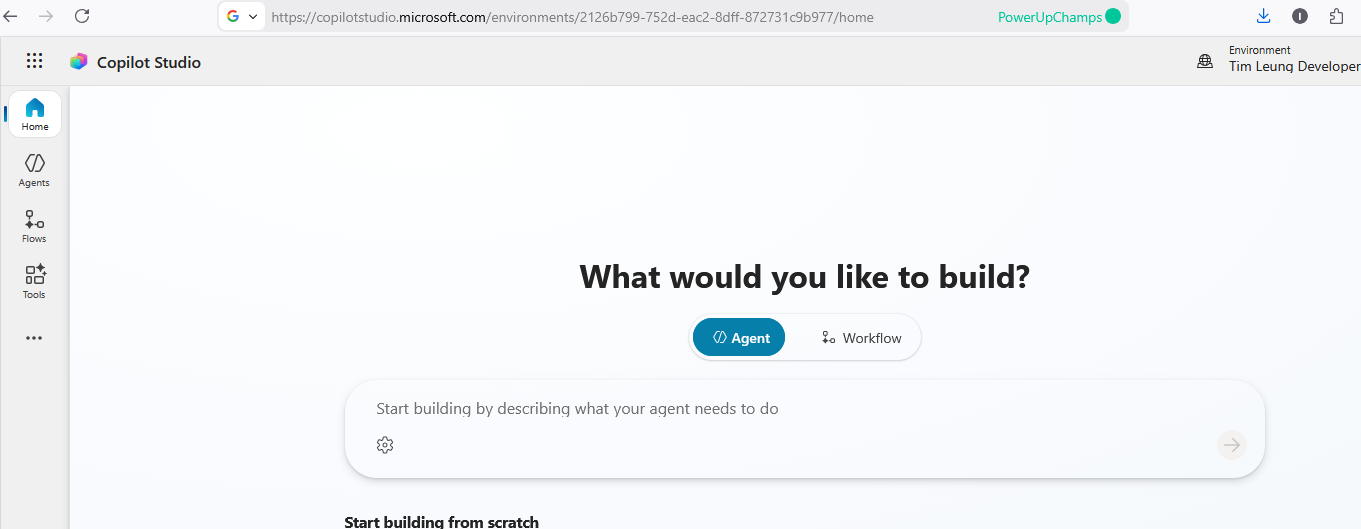
When navigating to https://copilotstudio.microsoft.com, an error message appeared showing the following missing permissions - `prvReadbot`, `prvWritebot`, `prvReadbotcomponent`, `prvWritebotcomponent`, and `prvReadSolution`.
The cause of this error is that access to the default environment is restricted for students and it's necessary to switch to a developer environment. Under normal circumstances, we can switch environments using the environment switcher shown in the top right of the screen (highlighted below). The problem is that when a permissions error occurs, the banner that shows the environment switcher doesn't appear. So how can we switch environments under this cirmunstance?
How to Switch Environments when the Environment Picker doesn't appear?
To switch environments when the banner with the Environment Picker doesn't appear, the first step is to find the environment ID. We can do this by navigating to PowerApps (https://make.powerapps.com/) and navigating to the developer environment. This should work, as the errors in Copilot Studio are raised due to insufficient Copilot Studio permissions.In Power Apps, we will see the Environment ID in the address bar (shown below). This will be a GUID in the format `xxxxxxxx-xxxx-xxxx-xxxx-xxxxxxxxxxxx`. Make a note of this ID.
Next, navigate to the following URL, replacing <YOUR_ENVIRONMENT_ID> with your ID from above.
This should then successfully open Copilot Studio, as shown below.
