Formula - How to add a button that converts degrees Centigrade to Fahrenheit and vice versa

A common scenario we might encounter is to provide some method for users to convert units of measurement.

This post describes how we can build a screen where a user can enter a value through a text input control. On clicking a button, the app carries out a conversion and replaces the value in the text input control with the converted value.

This type of feature is ideally suited for data entry screens where users may need to perform conversions prior to input.

Explanation of Maths

The maths to carry out the conversion is shown below. This is the logic that we'll be using in our app.

//To convert degrees celsius to fahrenheit:
F = C * 9/5 + 32

//To convert degrees fahrenheit to centigrade:
C = (F-32) * 5/9

Building the screen

Here are the steps to build the data entry elements on the screen.

First, we add a text input control (txtInput) and a button on our screen.

We set the Default property of txtInput to the following variable:
locResult
To configure the button to convert from degrees Celsius to Fahrenheit, we would set the OnSelect property to the following:
UpdateContext({locResult:(Value(txtInput.Text) * (9/5)) + 32 })
This is how the design time view of the app appears:
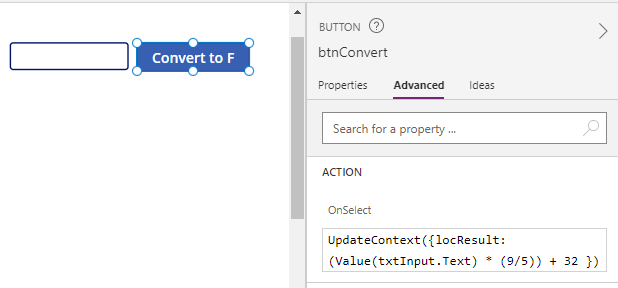
If instead, we want to convert from Fahrenheit to Celsius, we would set the OnSelect property to the following:
UpdateContext({locResult:(Value(txtInput.Text) -32)* (5/9) })

Testing the app

At this stage, we can run and test the app. The user can enter a centigrade value like so.
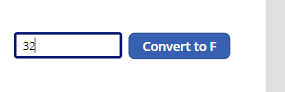

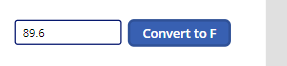
On clicking the button, the app converts and overwrites the input value with the Fahrenheit value.
Conclusion

In this post, we walked through how to build a feature on a data entry screen to enable users to easily convert units of measurement.

Related posts

FormuIas - Is it possible to call a user-defined function recursively in Power Apps?
January 31, 2024
Formulas - A beginners guide on how to create and call user-defined functions (UDFs)
January 28, 2024
Formula - How to convert a single delimited string to rows and columns
April 05, 2023
Data - How to group data in a gallery and calculate sums
January 20, 2023
Formula - How to calculate compound interest
November 24, 2022
Utilities - The best way to peform OCR on images of Power Apps Formulas
October 11, 2022
Example - How to use a drop down control to convert currencies
September 27, 2022
Formula - How to parse JSON in Power Apps- 4 examples
September 15, 2022
Data - How to get a row by ordinal number
April 28, 2022
Formula - What to do when the If statement doesn't work?
December 17, 2021
Formula - Boolean And / Or operators - What is the order of precedence?
December 16, 2021
Controls - How to set the data source of a Combo Box to a comma separated string
November 16, 2021
Numbers - 10 examples of how to round numbers
August 18, 2021
Formula - Difference between round, square, and curly brackets
July 20, 2021
Top 3 highlights of upcoming enhancements to the Power Apps language (Power FX)
May 26, 2021
Email - Sending email attachments with the Office 365 Outlook connector
March 30, 2021
Formula - What to try when numbers don't format correctly
March 24, 2021
Controls - How to convert HTML to Text
March 23, 2021
Formulas - how to return all days between two dates
March 15, 2021
Formula - How to create comma separated (CSV) list of items
February 25, 2021
Formula - How to use the IF and Switch functions - 3 common examples
February 12, 2021
Location - Finding the closest location and and sorting records by distance, based on the current location of the user
January 24, 2021
Formulas - How to cope with weekends and public holidays in date calculations
January 21, 2021