FormuIas - Is it possible to call a user-defined function recursively in Power Apps?
When building user-defined functions, an interesting snippet that's highlighted in the Power Apps blog is the ability to call user-defined functions recursively.

Theory - How to build a recursive user-defined function
To clarify this a little further, the pertinent logic exists in the call to Sum.Attempting to build a recursive user-defined function in Power Apps

The example shown runs in the Power FX console. It shows a list of employees with their
managers. By calling a user-defined function recursively, it's possible to count the number of employees who are hierarchically
beneath each employee.
The ability to call user-defined functions recursively is great for these use case scenarios where we want traverse tree structures or scenarios where we need to generate sequences based on computations.
Now that user-defined functions have entered the experimental phase, is it possible to recreate this example in Power Apps? This post finds out.
Building a data source for the recursive user-defined function demonstration
The Power FX example is based on a named formula that returns a table of employees (shown below). Note that in practice, this could be a collection or a live data source.
// table of employees with manager (Named Formula)
Employees =
    Table(
        { Employee: "Charles" },
        { Employee: "Sandra", Manager: "Charles" },
        { Employee: "John", Manager: "Sandra" },
        { Employee: "Tina", Manager: "Sandra" },
        { Employee: "Julia", Manager: "Charles" },
        { Employee: "Fred", Manager: "Julia" },
        { Employee: "Kim", Manager: "Sandra" },
        { Employee: "Jane", Manager: "Fred" }
    );
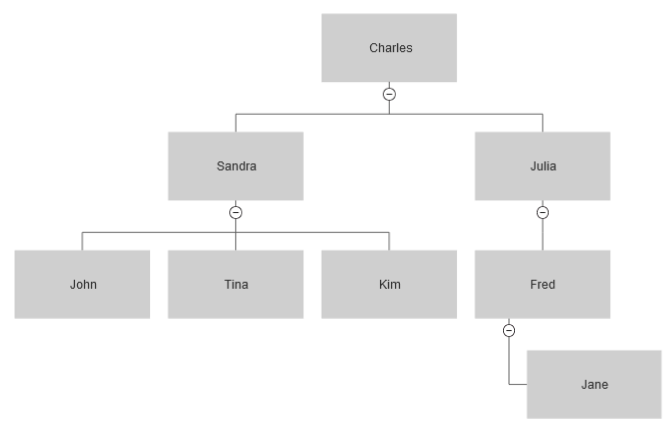
To make more sense of this, the chart below illustrates how this data structure looks hierarchically.
Theory - How to build a recursive user-defined function
In the Power FX demo, the user-defined function that counts the employees beneath a specific employee looks like this:
// user defined function (UDF) to recursively walk the organization and tally reports
TotalReports(ThisEmployee: String): Number =
       Sum(Filter(Employees,
                  Manager = ThisEmployee
                 ),
           1 + TotalReports(Employee)
       );
This function takes the name of an employee as an input parameter. It filters the Employees table to return only those records where the manager matches the name that's been passed to the function. It then counts the employee and adds a recursive call to the function to add the number of child reports for the employee.
Sum(Filter(Employees,
           Manager = ThisEmployee
    ),
    1 + TotalReports(Employee)
);
The Sum function takes the filtered table as an input. For each row in the input table, the function adds 1 and adds the number of child reports by calling the TotalReports function again.
Attempting to build a recursive user-defined function in Power Apps
Let's now try to implement this recursive function in Power Apps. To do this, we navigate to the 'Formulas' section in the App node and enter the formula.
Unfortunately, we very soon see that the Power Apps implementation of user-defined functions doesn't support recursion. When we attempt to create our user-defined function, we receive the error "This rule creates a circular reference between properties, which is not allowed. A property cannot reference itself or other properties affected by its value.".
Therefore, this error stops our experiment and we cannot continue further with this.
However if this worked, we could theoretically define a named formula that returns the Employee table and adds a "Total Reports" column.
// evaluate UDF for each employee and add a new column to the table
EmployeesWithReports =
        AddColumns(Employees,
                   "Total Reports",
                   TotalReports(Employee)
         );
Conclusion
According to the Power FX spec, it should be possible to call user-defined functions recursively. If we attempt to do this with the recent experimental implementation of user-defined functions in Power Apps, we receive a circular reference error. Hopefully, the ability to call user-defined functions recursively will be added in a future update.
