Controls - How to set the data source of a Combo Box to a comma separated string

In some cases, it may be necessary to set the data source of a combo box control to a comma-separated list.

This can occur when we want to display combo box values from a variable, custom connector, web service, or some other third-party data source.

This post summarises how to display combo box items from a comma-separated string, including how to set selected values, and how to retrieve selected values in a comma-separated format.

How to set the data source of a combo box to CSV string

To demonstrate, let's take the example of a comma-separated list of days that looks like this:

"Monday, Tuesday, Wednesday, Thursday, Friday, Saturday, Sunday"

To configure a combo box control to display each day name, we would set the items property of the combo box control like so:

Split(
"Monday,Tuesday,Wednesday,Thursday,Friday,Saturday,Sunday",
","
)

The Split function takes two input values - an input string and the separator character. It returns a single value table with the column name 'Result'. Therefore to display this output in a combo box, it's important to specify the Display Fields value -  [''Result'].
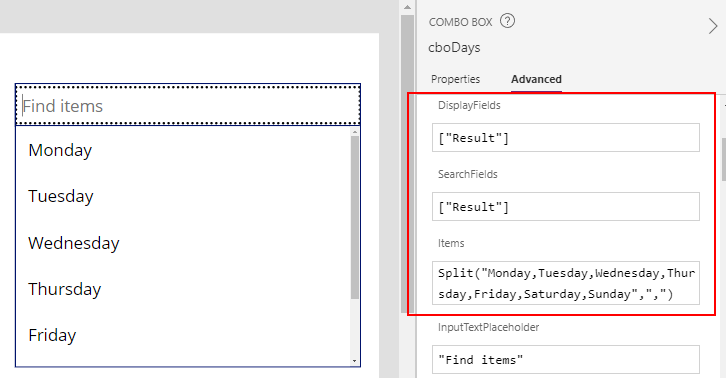

In practice, source values can often include leading or trailing spaces between each item. To remove these extraneous spaces, we can call the substitute function on the input string to replace instances where there is an extra space following each comma. We would set the items property of the combo box control like so

Split(
Substitute(
"Monday, Tuesday, Wednesday, Thursday, Friday, Saturday, Sunday",
", "
),
","
)

How to set the selected combo box items

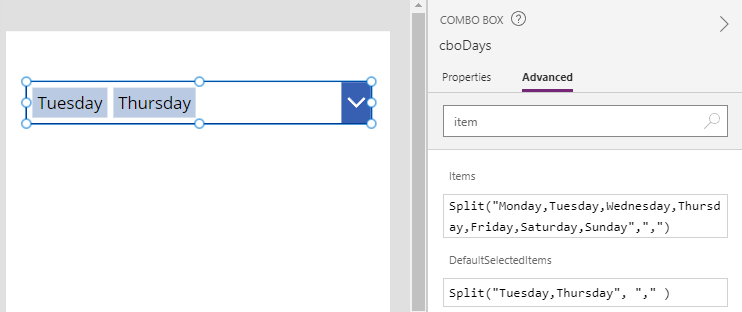
To set the selected items in a combo box, we set the DefaultSelectedItems property. Let's assume we want to select the items Tuesday and Thursday. We would set the default selected items property of the combo box like so:

Split("Tuesday,Thursday",
","
)

What to do when the selected combo box items don't display 

A common problem is that the combo box fails to display the selected items. The most common cause of this is a mismatch in column names between the Items and DefaultSelectedItems properties. The fix is to correct this mismatch by calling RenameColumns.

As an example, let's take a variation where we set the Items property of the combo box to Calendar.WeekdaysLong. This is a built-in function that returns all the days of a week. It returns a single value table with the column name "Value".

Calendar.WeekdaysLong()

To set the selected items from this combo box, it's important to specify a DefaultSelectedItems formula that returns the column name "Value".

Since the return value from Split function is a table with the column name "Result", we must rename this to "Value".  Here's the formula to set the values Wednesday and Friday.

RenameColumns(
Split(
"Wednesday,Friday",
","
),
"Result",
"Value"
)
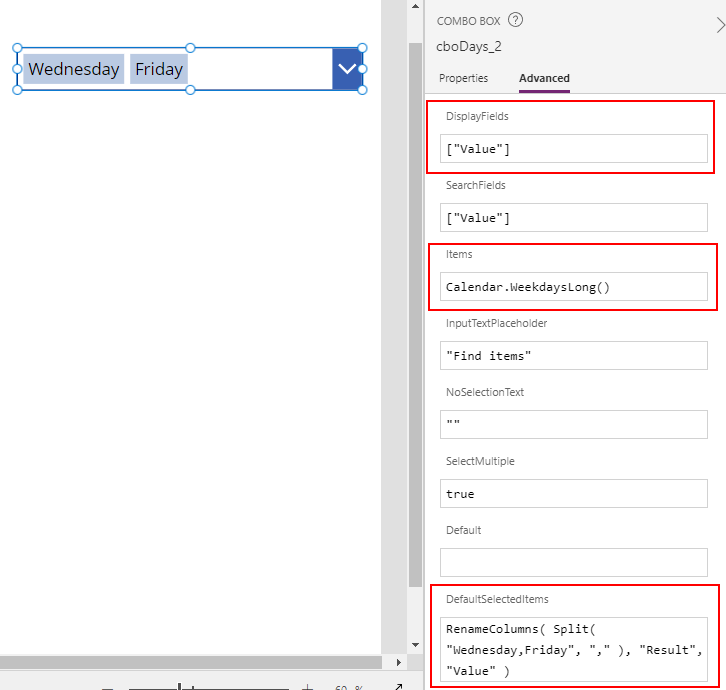
Once we modify the formula in this way, the combo box will show the desired values.


How to retrieve a comma-separated list of selected combo box items

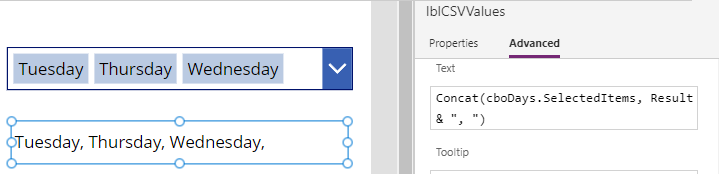
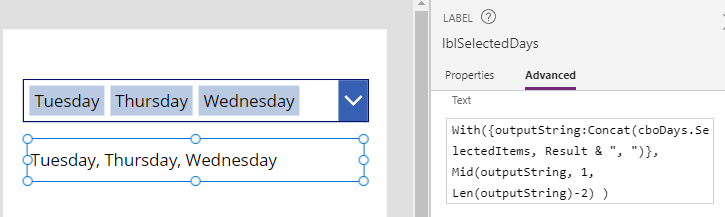
Finally, an associated requirement to is output the selected items in a combo box control as a comma-separated string. We can accomplish this by calling the Concat function like so.

Concat(cboDays.SelectedItems, Result & ", ")
How to strip trailing commas

This problem with concatenating rows using this technique is that it results in a trailing comma. Therefore, we can call the Mid function to strip the final 2 characters of the output like so:

With({outputString:Concat(cboDays.SelectedItems, Result & ", ")},
Mid(outputString, 1, Len(outputString)-2)
)

Conclusion

There may be a need to set the data source of a combo box control to a comma-separated string. This post described the formula to carry out this task, including how to set the selected items, and how to output the selected items as a comma-separated string.

Related posts

FormuIas - Is it possible to call a user-defined function recursively in Power Apps?
January 31, 2024
Formulas - A beginners guide on how to create and call user-defined functions (UDFs)
January 28, 2024
Formula - How to add a button that converts degrees Centigrade to Fahrenheit and vice versa
May 08, 2023
Formula - How to convert a single delimited string to rows and columns
April 05, 2023
Data - How to group data in a gallery and calculate sums
January 20, 2023
Formula - How to calculate compound interest
November 24, 2022
Utilities - The best way to peform OCR on images of Power Apps Formulas
October 11, 2022
Example - How to use a drop down control to convert currencies
September 27, 2022
Formula - How to parse JSON in Power Apps- 4 examples
September 15, 2022
Data - How to get a row by ordinal number
April 28, 2022
Formula - What to do when the If statement doesn't work?
December 17, 2021
Formula - Boolean And / Or operators - What is the order of precedence?
December 16, 2021
Numbers - 10 examples of how to round numbers
August 18, 2021
Formula - Difference between round, square, and curly brackets
July 20, 2021
Top 3 highlights of upcoming enhancements to the Power Apps language (Power FX)
May 26, 2021
Email - Sending email attachments with the Office 365 Outlook connector
March 30, 2021
Formula - What to try when numbers don't format correctly
March 24, 2021
Controls - How to convert HTML to Text
March 23, 2021
Formulas - how to return all days between two dates
March 15, 2021
Formula - How to create comma separated (CSV) list of items
February 25, 2021
Formula - How to use the IF and Switch functions - 3 common examples
February 12, 2021
Location - Finding the closest location and and sorting records by distance, based on the current location of the user
January 24, 2021
Formulas - How to cope with weekends and public holidays in date calculations
January 21, 2021