Formula - How to Parse JSON with UDTs - 4 Examples
In the past, parsing JSON with the ParseJSON function was difficult. This was because it returned an UntypedObject, which required us to manually cast every field to a specific data type using functions like Text or Value.
Last year, the User Defined Types (UDTs) feature was introduced and is currently still in preview. This enables us to define a schema and parse JSON directly into a typed Power Fx object. It removes the need for manual casting and provides full IntelliSense for fields in the designer, which is a great benefit.
This post provides an update to my previous post on parsing JSON, and demonstrates how to simplify this task with the help of UDTs. We'll walk through 4 common JSON structures.
Prerequisite - Enable the Experimental Feature
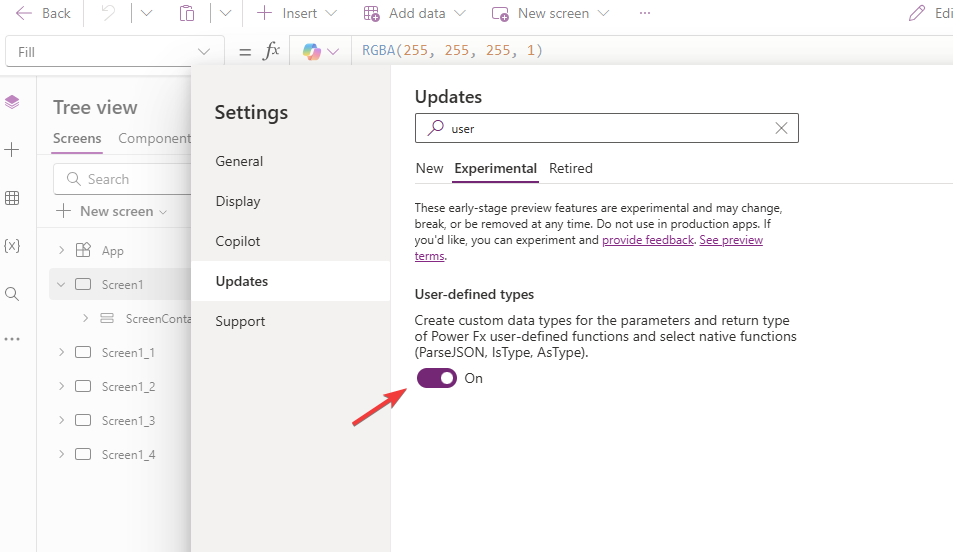
Because UDTs are still an experimental feature we must enable this feature before use.
In the Settings of the app, select the Updates > Experimental and Search for User-defined types. Enable this option, and save/restart Power Apps Studio to apply the changes.
How and Where to Create a User-Defined Type
A User-Defined Type (UDT) is a custom structure that defines the schema of a record or a table. These types are declared globally in the App.Formulas property. Once defined, a UDT can be passed as a second argument to the ParseJSON function. This instructs Power Apps to map the JSON string directly to your typed structure.
The data we'll parse in this walkthrough relates to people data in this format:
{
 "title": "Mr",
 "firstName": "Tim",
 "lastName": "Leung",
 "age": 40,
 "email":"[email protected]"
}
To work with this data, we'll need to define a UDT that represents this schema in the Formulas property in the App node.
UserType := Type({
 title: Text,
 firstName: Text,
 lastName: Text,
 age: Number,
 email: Text
});
The screenshot beneath illustrates how this looks in the designer.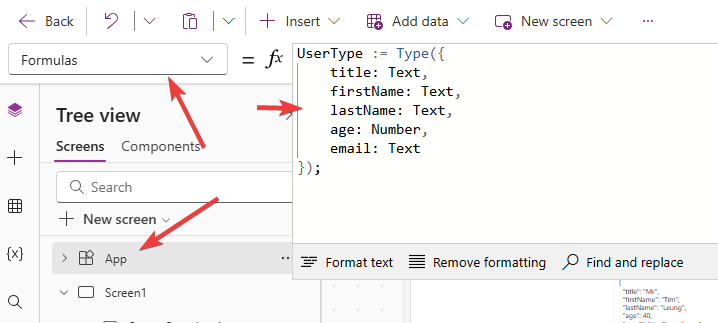
Example 1: Parsing a Single Record
Let's start with the basic example of how to parse a single JSON record that looks like this.
{
 "title": "Mr",
 "firstName": "Tim",
 "lastName": "Leung",
 "age": 40,
 "email":"[email protected]"
}
For the demonstrations in this post, we'll place this input JSON in a text input control called txtJSON. If you want to recreate this example, here's the YAML of the control you can paste onto your screen.
- txtJSON:
 Control: Classic/[email protected]
 Properties:
 Default: |-
 ="{
 ""title"": ""Mr"",
 ""firstName"": ""Tim"",
 ""lastName"": ""Leung"",
 ""age"": 40,
 ""email"": ""[email protected]""
 }"
 Mode: =TextMode.MultiLine
We can now parse this JSON using the following formula.
With({obj: ParseJSON(txtJSON.Text, UserType)},
 obj.firstName & " " & obj.lastName
)
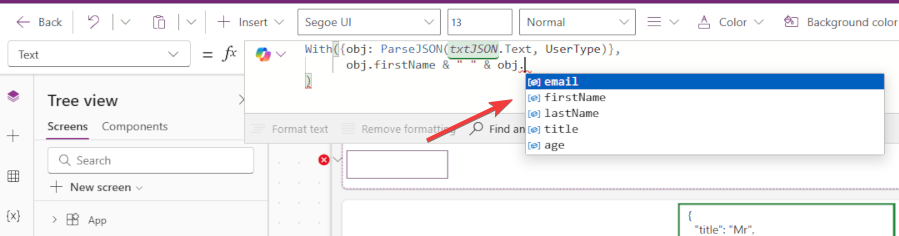
This syntax removes the need to cast each item to its correct data type. The beauty of UDTs is highlighted in the screenshot beneath. Intellisense is available for the fields that have been parsed.
//OLD syntax prior to UDTs
With({obj:ParseJSON(txtJSON.Text)},
 Text(obj.firstName) & " " & Text(obj.lastName)
)
Example 2 - Parsing an Array of Records
For our second example, let's look at how to parse an array of input records and to display the result in a control such as a gallery, data table, or combobox.
Here's how our input data looks.
[
 {
 "title": "Mr",
 "firstName": "Tim",
 "lastName": "Leung",
 "age": 40,
 "email":"[email protected]"
 },
 {
 "title": "Mrs",
 "firstName": "Sally",
 "lastName": "Smith",
 "age": 30,
 "email":"[email protected]"
 },
 {
 "title": "Mr",
 "firstName": "John",
 "lastName": "Taylor",
 "age": 45,
 "email":"[email protected]"
 }
]
- txtJSON2:
 Control: Classic/[email protected]
 Properties:
 Default: |-
 ="
 [
 {
 ""title"": ""Mr"",
 ""firstName"": ""Tim"",
 ""lastName"": ""Leung"",
 ""age"": 40,
 ""email"":""[email protected]""
 },
 {
 ""title"": ""Mrs"",
 ""firstName"": ""Sally"",
 ""lastName"": ""Smith"",
 ""age"": 30,
 ""email"":""[email protected]""
 },
 {
 ""title"": ""Mr"",
 ""firstName"": ""John"",
 ""lastName"": ""Taylor"",
 ""age"": 45,
 ""email"":""[email protected]""
 }
 ]
 "
 Mode: =TextMode.MultiLine
In the Formulas property in the App node, we extend our user defined types to include a UserListType UDT that specifies the array of users like so:
UserType := Type({
 title: Text,
 firstName: Text,
 lastName: Text,
 age: Number,
 email: Text
});
UserListType := Type([UserType]);ParseJSON(txtJSON2.Text, UserListType)
Example 3 - Parsing Nested Records
The third example is a single record that contains nested records. The JSON for this example looks like this.
{
 "clients":
 [
 {
 "title": "Mr",
 "firstName": "Tim",
 "lastName": "Leung",
 "age": 40,
 "email":"[email protected]"
 },
 {
 "title": "Mrs",
 "firstName": "Sally",
 "lastName": "Smith",
 "age": 30,
 "email":"[email protected]"
 }
 ]
}
ParseJSON(txtJSON3.Text, Type({ clients: [UserType] })).clients Example 4 - Multiple JSON records with multiple nested records
|n the final example, here's how to parse an array of records, each with nested records.
Here's how the input data looks.
[
 {
 "firstName":"Tim",
 "lastName":"Leung",
 "phoneNumbers":[
 {
 "type":"home",
 "number":"098322256"
 },
 {
 "type":"work",
 "number":"098322085"
 }
 ]
 },
 {
 "firstName":"Sally",
 "lastName":"Smith",
 "phoneNumbers":[
 {
 "type":"home",
 "number":"098324566"
 },
 {
 "type":"work",
 "number":"098389089"
 }
 ]
 },
 {
 "firstName":"John",
 "lastName":"Taylor",
 "phoneNumbers":[
 {
 "type":"home",
 "number":"093445345"
 },
 {
 "type":"home",
 "number":"098354244"
 }
 ]
 }
]
Here's what to add in the Formulas property of the App node.
PhoneType := Type({
 type: Text,
 number: Text
});
UserListType := Type([UserType]);
UserContactInfo := Type({
 firstName: Text,
 lastName: Text,
 phoneNumbers: [PhoneType]
});
Parsing the JSON simply becomes this.
ParseJSON(txtJSON4.Text, Type([UserContactInfo])) Again, we see the syntax is much simplified.
Conclusion
Previously, parsing JSON with ParseJSON was a chore because it required the manual casting of data types for individual fields. UDTs makes this process structured, type-safe, and easier to implement.
This post walked through 4 examples of how to parse JSON, starting with a simple example and ending with a complex example.
