SQL Server for Beginners Part 2 - Installing Management Studio

In this next post on setting up an on-premise SQL Server for use with PowerApps, we'll walk through how to install SQL Server Management Studio. This is the tool that we use to create databases and tables.

The first step is to download SQL Server Management Studio and you can do this through the link below.

https://docs.microsoft.com/en-us/sql/ssms/download-sql-server-management-studio-ssms?view=sql-server-2017

Once you download the installer, running the setup process is a very simple process. There are no options that you need to configure.
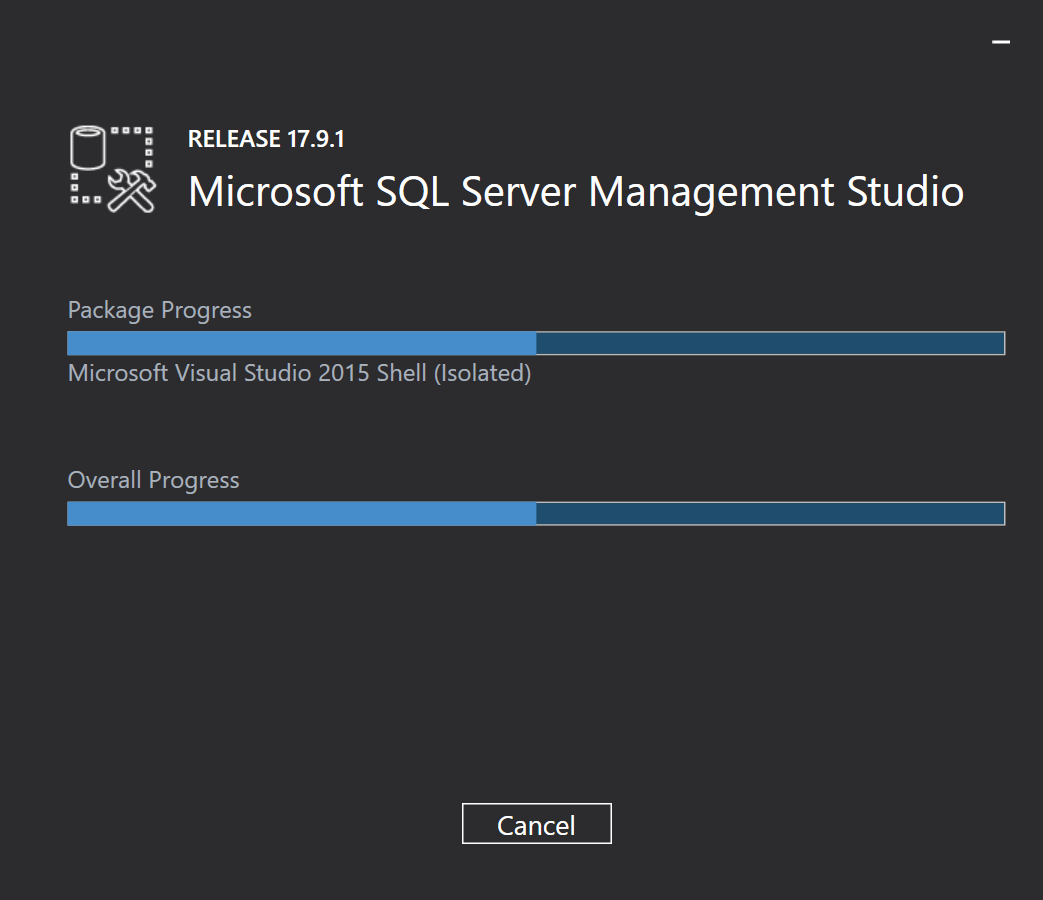
At the end of the process, the installer will create a shortcut to SQL Server Management Studio in your Start Menu.

Here is the screen that we see when we first start Management Studio. In our example, we installed a named instance of SQL Server called SQL Express. So in the 'Server name' textbox, we can type in 'localhost\SQLEXPRESS'.
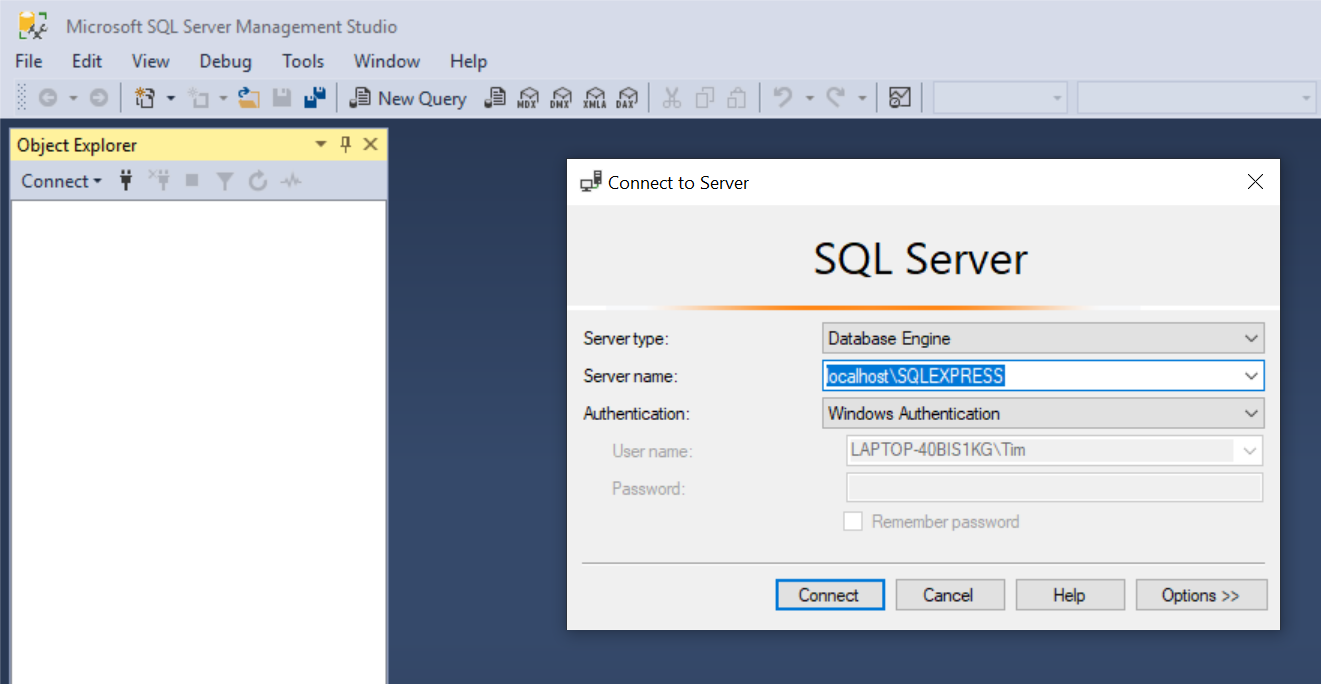

When Management Studio opens, the SQL Server Instance will appear in the 'Object Explorer' section on the left hand pane.
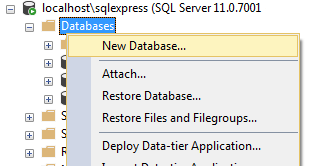
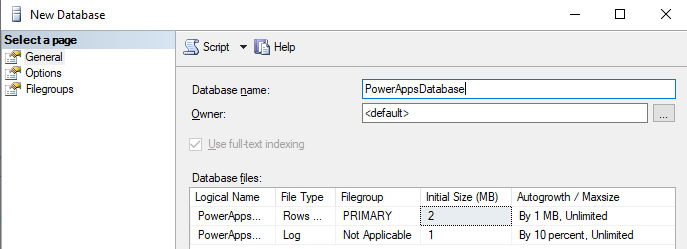
To create a database, right click the New Database option. In the 'New Database' window that appears, the most important step is to provide a Database Name. We can retain the default values for the other settings.

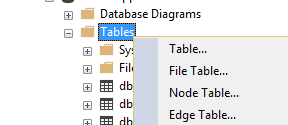
Once we've created our database, we can create a new table by right clicking the Tables node and selecting Table.
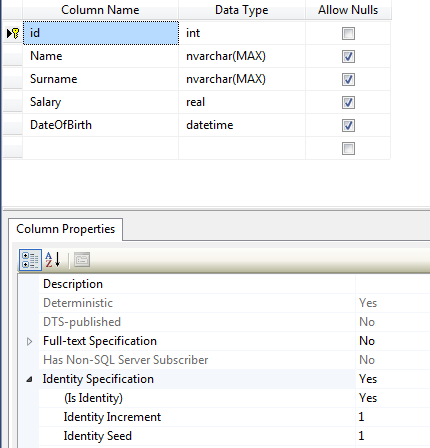
This opens the table designer and from here, we can define the fields fields that we want to store in our table. As an example, here's the definition of a table that stores employee records.
The VERY important thing to note is this. In order to edit records through PowerApps, the table MUST have a primary key. Here's an example of a typical problem that occurs when no primary key exists on a table.


In the screenshot above, the id column is the primary key. We can define this by right clicking the 'id' row, and selecting the 'Set Primary Key' option. In this example, the id column is also defined as an Identity column (as shown in the screenshot). An identity column defines an auto-incrementing numeric column, and this is the setting that I recommend for a primary key.

Summary

In this post, we walked through how to setup a database and how to create a table. In the next post, we'll look at how to setup the on-premises gateway. This is the tool that enables us to connect to our database from PowerApps.

Related posts

Data - How to remove trailing comma all rows in a table
February 20, 2025
Data - How to find the common rows from 3 or more collections
October 06, 2024
Data - How to show the distinct rows from 2 data sources or collections
February 26, 2024
Data - How to implement circular rotational date sorting
February 21, 2024
Bug - What to do when the data section of the Power Apps Maker portal doesn't work
June 18, 2023
Data - Combine columns from separate tables into a single table
October 13, 2022
Formula - Transposing/converting rows to columns- an almost impossible task?
September 23, 2021
Data - How to rename field names in a record
July 14, 2021
Data - How to hide duplicate rows in a gallery / show distinct multiple columns in a gallery
July 09, 2021
Data - Retrieving news/forum/blog articles with RSS
June 26, 2021
Data - How to sort by partial numbers in a text field
June 23, 2021
Data - How to return the last record from a table
June 19, 2021
Data - How to create bulk test/dummy records with random values
June 18, 2021
Data - 3 things you should know before using the MySQL or PostgreSQL connectors
May 11, 2021
Data - A walkthrough of how to migrate the data source of an app from Excel to Sharepoint
April 26, 2021
Data - How to enforce unique values (or prevent duplicate values) in one or more columns
April 19, 2021
Data - How much mobile data does Power Apps consume? What ways can we minimise this?
March 28, 2021
Data - How to save and retrieve Google calendar entries
March 14, 2021
Data - How to save and retrieve Google contacts
March 10, 2021
SQL - Caution! This is how users can hack shared SQL connections
January 23, 2021
SharePoint – 2 Mistakes to avoid when importing Excel data
January 10, 2021
SQL - Don't let this DateTime bug catch you out!
January 05, 2021
Settings - What's the purpose of the "Explicit Column Selection" Setting?
January 04, 2021
SQL Server for Beginners Part 3 - Installing On-Premises Gateway
January 24, 2019
SQL Server for Beginners Part 1 - Installing SQL Server
January 04, 2019
Searching data–What you need to know about case sensitivity
December 27, 2018
Images - How to create images that can change depending on data
November 09, 2018
Excel - Reasons NOT to use Excel as a data source
September 25, 2018
SharePoint - What you need to know about Filtering Data
September 16, 2018
Formulas - Generating Row Numbers
April 05, 2018