Data - How to save and retrieve Google calendar entries
The ability to access Google calendar entries can be very useful,
particularly for organisations that use GSuite, or cases where app
builders want to provide an easy way to retrieve, access, or to sync records from an Android device.
In this post, we'll walk through the syntax that enables us to manage Google calendar entries.
In this post, we'll walk through the syntax that enables us to manage Google calendar entries.
Introduction to connector
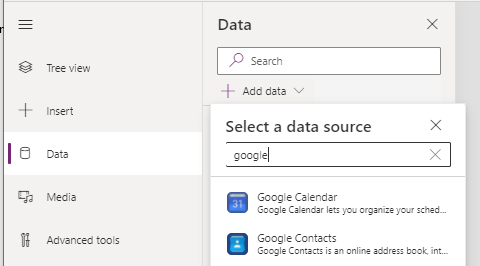
To use this connector in a canvas app, the first step is to add a connection through the data panel.The Google Calendar connector offers a range of features, including actions to:
- Show a list of available calendars
- List the calendar entries for a specific calendar
- Add, delete, and retrieve calendar entries
- Update a calendar entry
Retrieving a list of available calendars
Calendar entries are stored in calendars, and we can retrieve a list of available calendars by calling the ListCalendars action. GoogleCalendar.ListCalendars().items
The screenshot beneath shows the output when we set the items property of a data table control to this formula.
A key value that this action returns is the id for each calendar. This defines the unique identifier for the calendar, and we require this to show the calendar entries for a specific calendar.

Retrieving/Searching calendar entries
To retrieve the calendar entries for a specific calendar, we call the ListEvents action. This action requires a calendar ID. The formula beneath highlights the simple use of this action. Here, we provide the ID of the selected calendar from the data table of available calendars.GoogleCalendar.ListEvents(dtGoogleCalendars.Selected.id).items
GoogleCalendar.ListEvents(
         dtGoogleCalendars.Selected.id,
         {timeMin:Text(DateAdd(Now(), -2, Months), DateTimeFormat.UTC),
          timeMax:Text(Now(), DateTimeFormat.UTC),
          q:"project catchup"
         }
).items
This formula returns all calendar entries from the past two months that contain the phrase "project catchup" in any of the fields.
We must specify the from and to datetime values (timeMin and timeMax) in UTC format. UTC format looks like this - yyyy-MM-ddTHH:mm:ss.fffZ (2016-07-20T08:00:00.000Z).
The q parameter specifies the search text query, and we can omit this if we want to return all records.
We must specify the from and to datetime values (timeMin and timeMax) in UTC format. UTC format looks like this - yyyy-MM-ddTHH:mm:ss.fffZ (2016-07-20T08:00:00.000Z).
The q parameter specifies the search text query, and we can omit this if we want to return all records.
The screenshot beneath shows the output when we set the items property of a data table control to the ListEvents action.

This highlights the existance of an id value that uniquely identifies each event. We can pass this to the UpdateEvent, DeleteEvent, and GetEvent actions.
Other calendar attributes that we can access include description, summary, start, end, created (ie, the create date/time), attendees, htmlLink, location, organiser, status, and updated (ie, the updated date/time).
Other calendar attributes that we can access include description, summary, start, end, created (ie, the create date/time), attendees, htmlLink, location, organiser, status, and updated (ie, the updated date/time).
Creating a Calander Entry
The formula to create a calendar entry looks like this:GoogleCalendar.CreateEvent(
dtGoogleCalendars.Selected.id,
"2021-03-11 23:00",
"2021-03-11 23:15",
{
description: "description value",
location: "location value",
attendees: "[email protected]",
status: "status value",
isAllDay: false
}
)
The first 3 mandatory arguments are the target calendar ID, the start time for the event, and the end time of the event.
The 4th argument specifies a record with additional event details. The fields in this record include:
Updating a calander entry
The formula to update a calendar entry looks like this:
The first 2 mandatory arguments are the target calendar ID, and the target event ID. Just like the CreateEvent action, the final argument specifies a record that contains the calendar details to update.
Deleting a calander entry
The formula to delete a calendar entry looks like this:
The 2 mandatory arguments are the target calendar ID, and the target event ID.
The 4th argument specifies a record with additional event details. The fields in this record include:
- description - the description of the event.
- location - free-form text that describes the geographic location of the event.
- attendees - a comma-separated list of attendee emails.
- status - the 3 acceptable values are "confirmed", "tentative", or "cancelled".
- IsAddDay - a true/false value to indidcate if this is an all-day event.
Updating a calander entry
The formula to update a calendar entry looks like this:GoogleCalendar.UpdateEvent(
dtGoogleCalendars.Selected.id,
dtCalendarEvents.Selected.id,
{
start:"2021-03-11 23:00",
end:"2021-03-11 23:10",
description: "project catchup updated",
location: "location value",
attendees: "[email protected]",
status: "confirmed",
isAllDay: false
}
)
Deleting a calander entry
The formula to delete a calendar entry looks like this:GoogleCalendar.DeleteEvent(
dtGoogleCalendars.Selected.id,
dtCalendarEvents.Selected.id
)
