Data - How to show the distinct rows from 2 data sources or collections

A pretty common task is to show the distinct rows from 2 or more collections.

This post walks through the formula to carry out this task.

Walkthrough - Showing the distinct rows from 2 or more collections

As an example, let's take the following 2 collections - CollectionA and CollectionB.

ClearCollect(CollectionA, 
  {FirstName: "Alice", Surname: "Johnson", Email: "[email protected]"}, 
  {FirstName: "Bob", Surname: "Smith", Email: "[email protected]"}
);

ClearCollect(CollectionB, 
  {FirstName: "Bob", Surname: "Smith", Email: "[email protected]"}, 
  {FirstName: "Charlie", Surname: "Brown", Email: "[email protected]"}
);

With these 2 collections, Bob Smith appears in Collection A and Collection B. Therefore, the end result is to produce a collection that contains 3 records which correspond to Alice, Bob, and Charlie.

The key formula that carries out this task looks like this. To combine additional collections (or data sources), we can  specify the additional collections in the call to Table.
GroupBy(
Ungroup(Table(
{collection: CollectionA},
{collection: CollectionB}
),
"collection"
),"FirstName", "Surname", "Email","DistinctGroup"
)
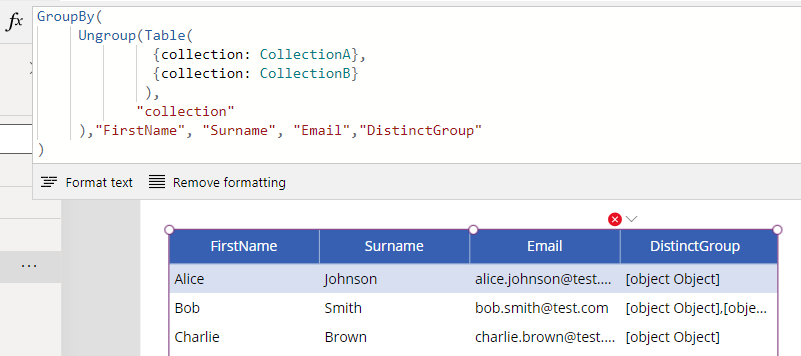
The screenshot beneath shows the result when we set the Items property of a data table to this formula.


The core part of this formula calls the Table function to create a table with 2 rows - each row contains a single column called "collection" that contains the content of a collection.

The call to the Ungroup function ungroups this table by the "collection" column. The Ungroup function creates a single table that combines the content of CollectionA and CollectionB.

This ungrouped table duplicates the "Bob" record that appears in CollectionA and CollectionB. Thefore, to create an output that removes this duplication, we call the GroupBy function and specify the unique columns to show for each row - in this case, FirstName, Surname, and Email.

The GroupBy function requires us to specify a column to store any remaining columns. Here we specify the column name DistinctGroup.We can call the DropColumns function to remove this column if needed.

To create a collection to store this result, we can use the formula shown beneath.
.
ClearCollect(FinalCollection,
DropColumns(
GroupBy(
Ungroup(Table(
{collection: CollectionA},
{collection: CollectionB}
),
"collection"
),"Name","Email","DistinctGroup"),
"DistinctGroup")
);

Conclusion

A common task is to show the distinct rows from multiple collections and this post walked through an example of how to do this.

Related posts

Data - How to remove trailing comma all rows in a table
February 20, 2025
Data - How to find the common rows from 3 or more collections
October 06, 2024
Data - How to implement circular rotational date sorting
February 21, 2024
Bug - What to do when the data section of the Power Apps Maker portal doesn't work
June 18, 2023
Data - Combine columns from separate tables into a single table
October 13, 2022
Formula - Transposing/converting rows to columns- an almost impossible task?
September 23, 2021
Data - How to rename field names in a record
July 14, 2021
Data - How to hide duplicate rows in a gallery / show distinct multiple columns in a gallery
July 09, 2021
Data - Retrieving news/forum/blog articles with RSS
June 26, 2021
Data - How to sort by partial numbers in a text field
June 23, 2021
Data - How to return the last record from a table
June 19, 2021
Data - How to create bulk test/dummy records with random values
June 18, 2021
Data - 3 things you should know before using the MySQL or PostgreSQL connectors
May 11, 2021
Data - A walkthrough of how to migrate the data source of an app from Excel to Sharepoint
April 26, 2021
Data - How to enforce unique values (or prevent duplicate values) in one or more columns
April 19, 2021
Data - How much mobile data does Power Apps consume? What ways can we minimise this?
March 28, 2021
Data - How to save and retrieve Google calendar entries
March 14, 2021
Data - How to save and retrieve Google contacts
March 10, 2021
SQL - Caution! This is how users can hack shared SQL connections
January 23, 2021
SharePoint – 2 Mistakes to avoid when importing Excel data
January 10, 2021
SQL - Don't let this DateTime bug catch you out!
January 05, 2021
Settings - What's the purpose of the "Explicit Column Selection" Setting?
January 04, 2021
SQL Server for Beginners Part 3 - Installing On-Premises Gateway
January 24, 2019
SQL Server for Beginners Part 2 - Installing Management Studio
January 14, 2019
SQL Server for Beginners Part 1 - Installing SQL Server
January 04, 2019
Searching data–What you need to know about case sensitivity
December 27, 2018
Images - How to create images that can change depending on data
November 09, 2018
Excel - Reasons NOT to use Excel as a data source
September 25, 2018
SharePoint - What you need to know about Filtering Data
September 16, 2018
Formulas - Generating Row Numbers
April 05, 2018