Data - How to view the progress and status of a Dataverse CSV/Excel Import

Users can import records from model-driven apps by clicking the Import from Excel menu item, as shown in the screenshot beneath. 


This opens a panel to upload an Excel or CSV file and to define the source and destination columns.

Completing this process opens the confirmation screen shown beneath. This includes a 'Track Progress' button to view the details and progress of the import.


If we accidentally close this window, how can we return to 'Track Progress' page?

The answer is that we can see the result through a built-in system table

How to view the Dataverse Excel/CSV file import history

To access this system table, go to the Tables section in the designer, click the 'All' tab and search for the word 'import'. We should see a table called 'Import Source File' (shown below).


The screenshot below shows what we see when we open this table. The rows at the bottom show the import history and status.
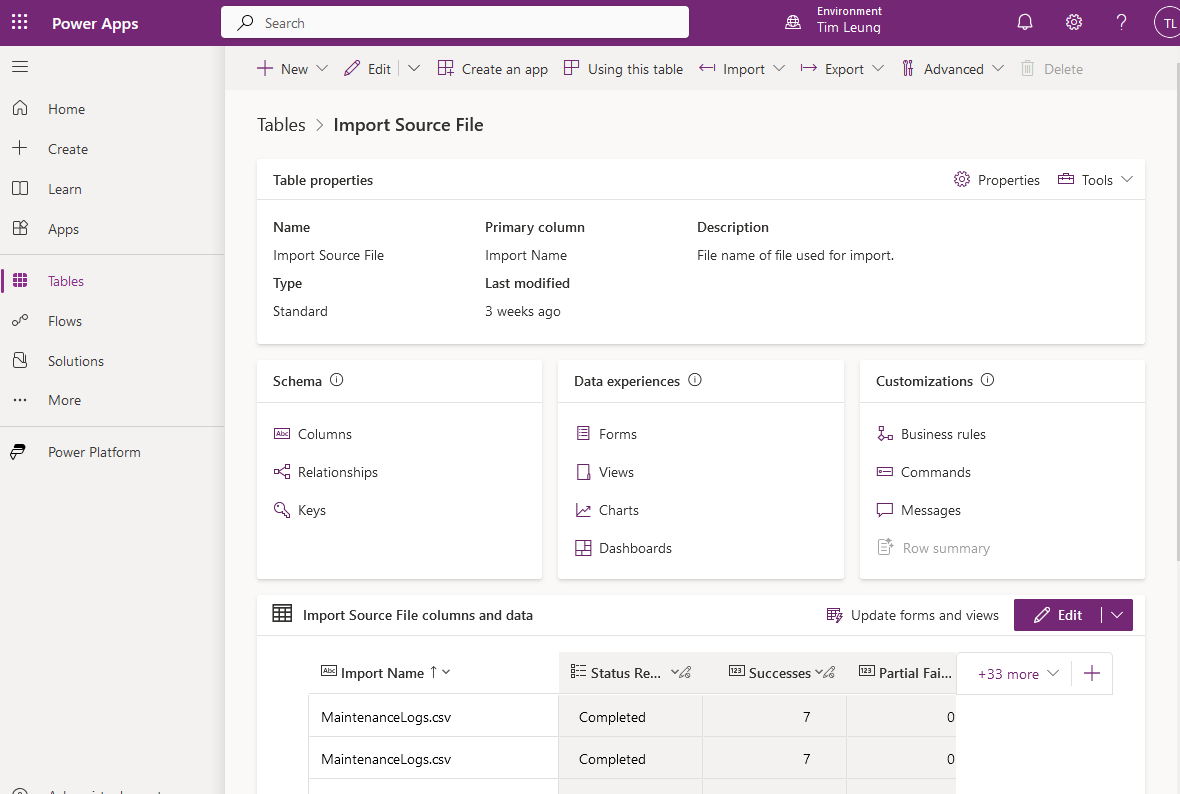

When we open one of the import records, we can see the rows that succeeded, failed, or partially failed.

Conclusion

To view the import history of records imported into Dataverse through the table view of a model driven app, we can inspect a system table called 'Import source file'.

Related posts

Dataverse - How to set yes no values with checkbox- Walkthrough
January 29, 2025
Dataverse - Add image column missing when creating table - how to fix
January 19, 2025
Error - Diagnosing the error "Network error when using the Patch function" when saving data with a form
May 05, 2024
Dataverse - How to work around the error "multiple levels of many-to-one relationship expansion aren't supported"
April 05, 2024
Dataverse - The easiest way to modify Dataverse data outside of Dataverse and Power Apps
February 18, 2024
Dataverse - How to use a checkbox control a set a yes/no field in Dataverse
July 10, 2023
Dataverse - How to create Entity Relationship diagrams
January 22, 2023
Dataverse - How you can more quickly bulk update data using the SQL language
January 14, 2023
Dataverse - How to fix the bug in the 'Business Rules' editor that prevents numeric values from saving
January 05, 2023
Dataverse - What are the benefits, and how to create formula columns
July 20, 2022
Dataverse - How to sort the available choice items from a choice column
May 12, 2022
Error - Unable to modify Dataverse tables with error message, Language id should not be null
September 27, 2021
Dataverse - How to retrieve FetchXML or SQL for Dataverse views
July 13, 2021
Data - Why is Dataverse so fast?
June 15, 2021
Dataverse - How to create and use Dataverse views in Canvas Apps
June 09, 2021
Dataverse - How to filter Dataverse choice columns
June 07, 2021
Dataverse - How to switch to the classic designer when the option is not available
May 26, 2021
Licensing - What are Dataverse Restricted tables?
March 26, 2021
Media - How to save and work with microphone recordings
March 09, 2021
Dataverse - how to access tables from another environment
February 23, 2021
Dataverse - How to Patch the 5 most complex data types
January 19, 2021