Dataverse - How to use a checkbox control a set a yes/no field in Dataverse
When working with Dataverse Yes/No columns, a challenge is that the 'fields' part of the form designer provides no option to choose the checkbox or toggle control types. By default, the form editor renders yes/no columns using a drop-down.
Users can naturally expect to use a checkbox control to set yes/no fields so this behaviour can be frustrating.
This post walks through how to modify a form to enable users to set yes/no fields using a checkbox control.
How to configure a yes/no field to use a checkbox control
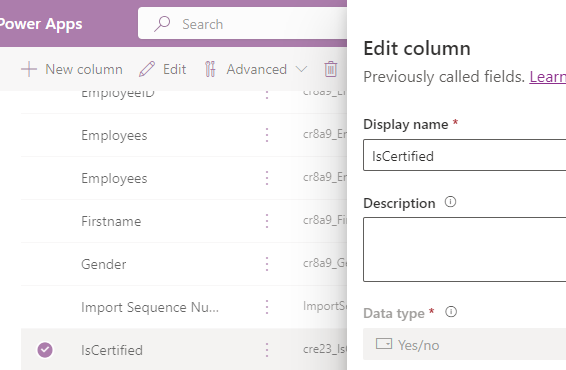
To demonstrate this technique, we'll start by building a modern auto-generated app using the 'start with data' template. Our example app is based on a table called 'Employees'. This table contains a yes/no column called 'Is Certified' (shown below).
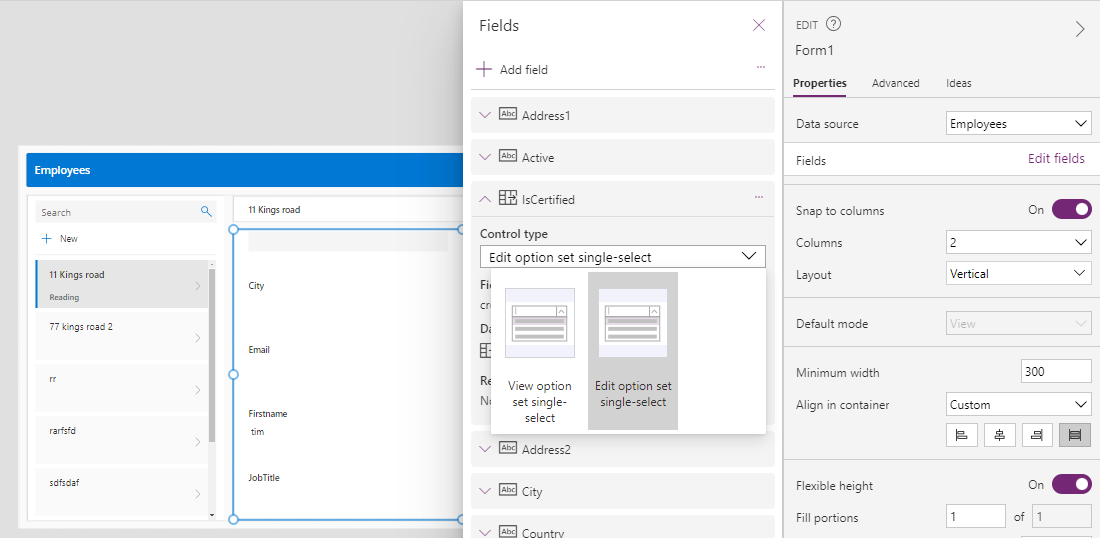
As we can see, there's no option to set the control type of 'Is Certified' to a checkbox. As the screenshot beneath shows, there are 2 options only - 'View option set single-select' and 'Edit option set single-select'.
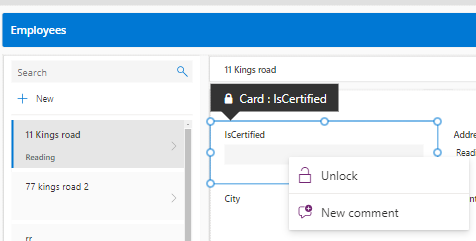
To configure this field to use a checkbox control, the first step is to unlock the IsCertified card.
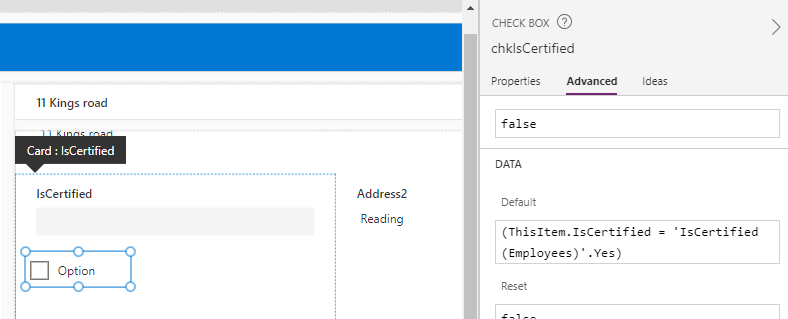
Next, we insert a checkbox control into the card. For this example, we'll rename it chkIsCertified.
To configure the checkbox control to display the correct existing value, we set the Default property to the following:
(ThisItem.IsCertified = 'IsCertified (Employees)'.Yes)
To configure the card to correctly update the field on a save, we set the Update property to the following:
If(chkIsCertified.Value = true,
   'IsCertified (Employees)'.Yes,
   'IsCertified (Employees)'.No
)
Next, we can delete the original Combo box control from the card. When we do this, we'll receive the following error which relates to the positioning of the error label. We fix this by modifying DataCardValue18 (the name of the old combo box control) to chkIsCertified (the name of the new checkbox control).
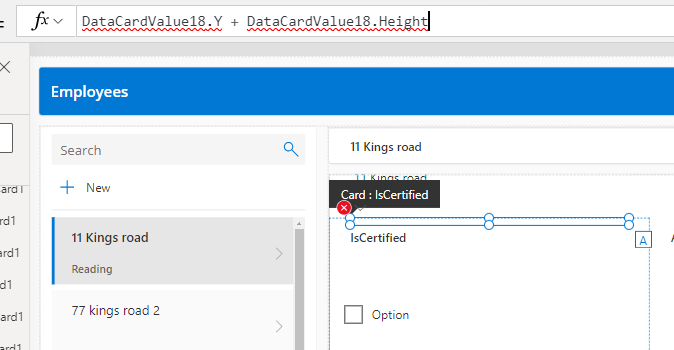
At this point, we can now run our app and set the IsCertified value using the checkbox control.
Conclusion
The form editor does not provide the option to set Dataverse yes/no fields using the checkbox control.
This post walked through how to manually modify a card to carry out this task.
