Dataverse - What are the benefits, and how to create formula columns
A feature that's been available in Dataverse for Teams for some time is "formula columns". The great news is that yesterday, Microsoft announced the preview release of formula columns in the full version of Dataverse. What are formula columns, what are the benefits, and how do we define a formula column? This post will answer these questions
What are formula columns?
Formula columns are computed/calculated Dataverse columns - similar to the calculated columns that exist in SharePoint and SQL Server. A formula column is a virtual column in a Dataverse table that doesn't store data. Instead, it returns a value based on a Power FX formula.An important point is that Dataverse already includes calculated columns. However, the existing implementation relies on a bespoke language with limited capabilities.
The new 'formula column' type enables us to define the calculation with Power FX - the same language we use in canvas apps and model-driven commands. The benefit is that Power FX is more capable, and it offers a more consistent design experience because we can now use the same language in the canvas and Dataverse designers. This ties into Microsoft's strategy of using Power FX as the common language across all products in the Power Platform (including Power Automate and Power BI).
These two column types will co-exist. A Dataverse table can contain both traditional calculated columns and formula columns.
What are the benefits of formula columns?
There are two most obvious benefits to formula columns. Firstly, the values are calculated in Dataverse by the server. This is quicker and more efficient, compared to the alternative of retrieving data client side and using canvas app functions to calculate the values.The second benefit is that provides a simpler way to display calculated values in model-driven and portal apps, where there isn't good native support for Power FX.
How to define a formula column
Formula columns are currently in preview. Therefore, to define a formula column, we must open the preview designer by following the URL below.
How to define a formula column
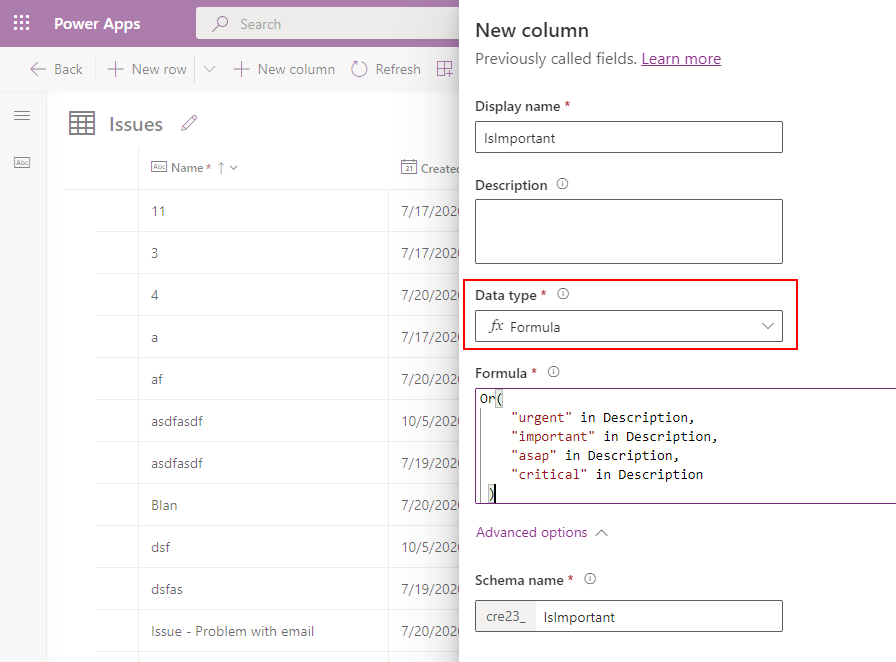
Formula columns are currently in preview. Therefore, to define a formula column, we must open the preview designer by following the URL below.In the table designer, we can then define a formula column by creating a new column and selecting the data type formula. In the formula text box beneath, we can enter the formula that produces the desired output.
The screenshot below highlights how to define a formula column called IsImportant. This column returns true if the description field contains one of the selected keyword values (urgent, important, asap, critical). The purpose of this example is to highlight a task that was difficult to achieve with traditional calculated columns, because support for string comparison functions was limited.
The formula text box provides full IntelliSense, and the documentation specifies the current list of supported operators and functions, which are as follows:
+, -, *, /, %, ^, in, exactin, &

Abs, And, Average, Blank, Char, Concatenate, DateAdd, DateDiff, Day, EndsWith, Exp, Hour, If, IfError, Int, IsBlank, IsError, ISOWeekNum, IsUTCToday, Left, Len, Ln, Lower, Max, Mid, Min, Minute, Mod, Month, Not, Or, Power, Replace, Right, Round, RoundDown, RoundUp, Second, Sqrt, StartsWith, Substitute, Sum, Switch, Text, Trim, TrimEnds, Trunc, Upper, UTCNow, UTCToday, Value, Weekday, WeekNum, Year
Limitations of formula columns
The current limitations of formula columns mostly relate to locale-specific functions. Because formula columns are calculated at the server, it has no knowledge of what language the user is using. If we try to apply a specific number format with the Text function, we receive an error along the lines of "Locale-specific formatting tokens such as "." and "," are not supported in formula columns.".

With this specific issue, passing a hard-coded local is unfortunately not supported.

Date columns can also be problematic. With Dataverse, we create date columns with a "time zone adjustment" setting of local or "time zone independent". The date functions in formula columns work only with "time zone independent" dates. For example, let's say we want to create a formula column that returns the month for a field, (which would be a reasonable requirement in a model-driven app). The screenshot beneath highlights the error we receive when we call the Month function ("Month cannot be performed on this input without a time zone conversion, which is not supported in formula columns.").

Calling the text function results in a similar error.

Better support for these localisation issues would be a great enhancement, particularly as extracting date parts is one area that is difficult to accomplish with traditional calculated columns.
Conclusion
Formula columns offer a great enhancement to Dataverse. They provide a way to utilise Power FX at the database blevel, and can help enhance the capabilities of model-driven and portal apps where Power FX isn't so readily available. This feature is currently in preview, and this post described the basic steps of how to define a formula column.
