SQL - How to return data from Stored Procedures to Power Apps
During the past week, one of the most exciting developments is the addition of direct SQL Stored Procedure support to Power Apps.
This post takes a closer look at this new feature, including the benefits and an explanation of how to call a Stored Procedure from Power Apps.
What's the benefit of using Stored Procedures?
Stored Procedures can help build much more performant apps. For instance, we can use them to overcome delegation limitations that prevent us from retrieving data from large tables. Stored procedures can also improve performance by providing a means to add and update multiple rows of data through a single call.
They also enable us to build more resilient apps by providing support for transactions. This is particularly valuable when updating data from multiple tables.
How to get started with calling Stored Procedures from Power Apps
How to get started with calling Stored Procedures from Power Apps
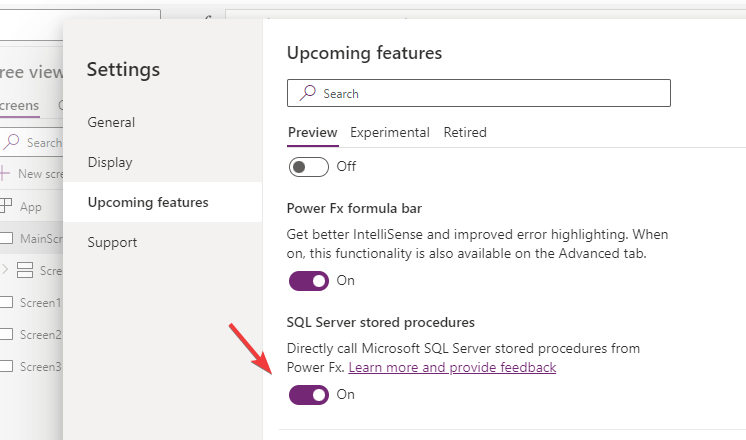
To use Stored Procedures from Power Apps, the first step is to enable the "SQL Server Stored procedure" option in the Upcoming features section of the app Settings. Once enabled, we can access Stored Procedures directly from PowerFx formulas in Power Apps.
How to retrieve records from a Stored Procedure
CREATE PROCEDURE [dbo].[GetProduct]
    @ProductID uniqueidentifier
AS
BEGIN
    SELECT *
	FROM
	[dbo].[Product]
    WHERE [ProductID] = @ProductID;
END;
To call this Stored Procedure from Power Apps, we add a connection to SQL server in the same way as as we would add a SQL table or view. In the right-hand panel, a 'Stored procedure' tab now appears. From here, we can select our stored procedure.

To display the return value of a stored procedure in a gallery, table, or some other data control, we need to click the 'Safe to use for galleries and tables?' checkbox.
If we leave this checkbox unchecked, the call to Stored Procedure will be behavioural, meaning that if we want to retrieve the results, we would do so by calling the Stored Procedure from a button and storing the result in a variable or collection.

With the 'Safe to use for galleries and tables?' checkbox checked, we can directly set the Items property of a data table control to the Stored Procedure call, as shown beneath.

Note that calls to Stored Procedures return a record called ResultSets. This contains one or more Table objects that correspond to the result sets that are returned by the procedure. Because our Stored procedure returns a single result set, the results of the procedure are contained in a table called Table1.
Working with multiple result sets from Stored Procedures
To demonstrate a Stored procedure that returns multiple result sets, let's take the example shown below. This Stored procedure returns two result sets - a row from a Property table that matches the ID of an input parameter, and a row from a 'Property Image' table that matches the ID parameter.
CREATE PROCEDURE [dbo].[GetPropertyDetails]The image below highlights the output when we call this Stored procedure from Management Studio.
@PropertyID int
AS
SELECT
propertyid, Address1, Address2, City
FROM
[Property]
WHERE PropertyID=@PropertyID
SELECT
[Image]
FROM
PropertyImage
WHERE PropertyID=@PropertyID

From Power Apps, we can call this Stored procedure by adding a button and applying the following formula to the OnSelect property.
Set(varPropertyDetail,
    PAGuide_1.dboGetPropertyDetails({PropertyID:1})
)
When we click the button, it sets the return value to a variable called varPropertyDetail.
As we see here, the ResultSets record within varPropertyDetail contains 2 tables - Table1 and Table2.

Table 1 contains the first result set.

Table 2 contains the second result set.
Table 2 contains the second result set.

Are there any data retrieval limitations?
When we collect data directly from a SQL table or view, the Collect and ClearCollect functions return a maximum of 2000 records or the maximum number that's defined in the 'data row limit' setting of an app.
The great thing about calling a Stored procedure is that this limit does not apply.
Let's take this example Stored procedure that returns a sequence of numbers. The number of records returned depends on an input parameter.
Let's take this example Stored procedure that returns a sequence of numbers. The number of records returned depends on an input parameter.
CREATE PROCEDURE [dbo].[GetNumberSequence]
    @RowCount INT
AS
BEGIN
    WITH NumberCTE AS
    (
        SELECT 1 AS Number
        UNION ALL
        SELECT Number + 1
        FROM NumberCTE
        WHERE Number < @RowCount
    )
    SELECT Number,
	       'Row number ' + CAST([Number] AS VARCHAR) AS [NumberDesc]
    FROM NumberCTE
    OPTION (MAXRECURSION 0)
END
If we execute this procedure from Management Studio with an
input value of 8,000, this is the output that's returned.

ClearCollect(colProduct,
            PAGuide.dboGetNumberSequence({RowCount:8000}).ResultSets.Table1
)
This is great news for Power App builders who may have struggled in the past with populating large connections.

