PowerUp - Send an Email Using the Outlook.com Connector in Power Automate
A frequent question from Power Up students relates to how to send emails with Power Automate.
The cause of the problem is that the Power Up program doesn't provide access to Office 365 Outlook. The reason for this is to ensure privacy for all Power Up learners.
The official recommendation is to use a personal Outlook.com email address, and this is mentioned in section 10 of the FAQ document that's accessible from the Power Up Portal.
The main confusion is that the course videos describe how to send emails with the Office 365 Outlook connector, and it might not be obvious how to change a flow to use the Outlook connector. This post walks through the process.
The cause of the problem is that the Power Up program doesn't provide access to Office 365 Outlook. The reason for this is to ensure privacy for all Power Up learners.
The official recommendation is to use a personal Outlook.com email address, and this is mentioned in section 10 of the FAQ document that's accessible from the Power Up Portal.
The main confusion is that the course videos describe how to send emails with the Office 365 Outlook connector, and it might not be obvious how to change a flow to use the Outlook connector. This post walks through the process.
Description of the problem
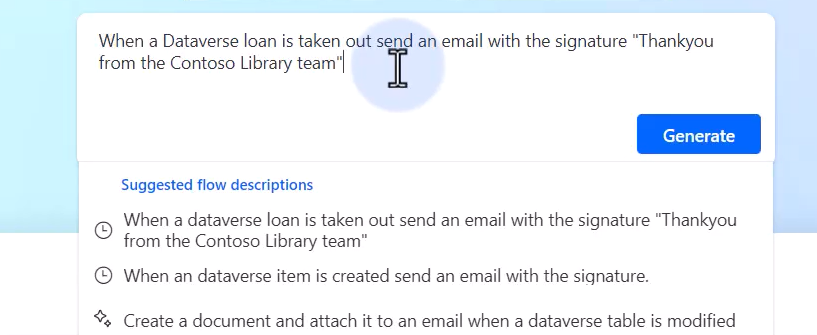
The frequent place where students encounter this issue is "Lesson 6 - Build a Student loan notification flow using Copilot"This lesson prompts the viewer to create a flow using the following prompt:
When a Dataverse loan is taken out, send an e-mail with the signature "Thank you from the Contoso library team".
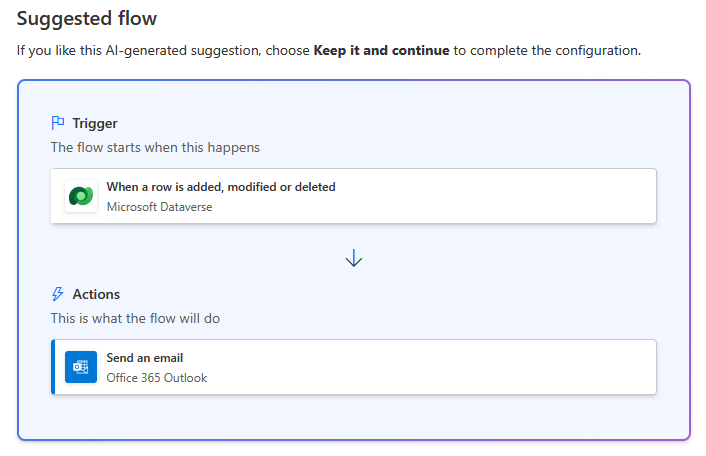
By default, this creates the flow illustrated below. Notice how the flow action is to "Send an email" using the "Office 365 Outlook" connector. The Power Up account will not have an "Office 365 Outlook" account and will therefore be unable to sign into the connector.
How to use the Outlook.com connector instead
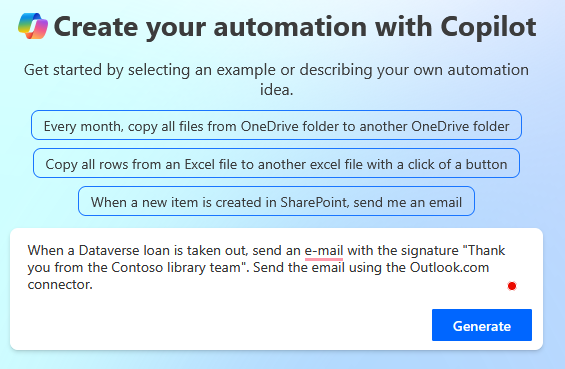
To use the Outlook.com connector, we change the prompt to specify the Outlook.com connector.
When a Dataverse loan is taken out, send an e-mail with the signature "Thank you from the Contoso library team". Send the email using the Outlook.com connector.
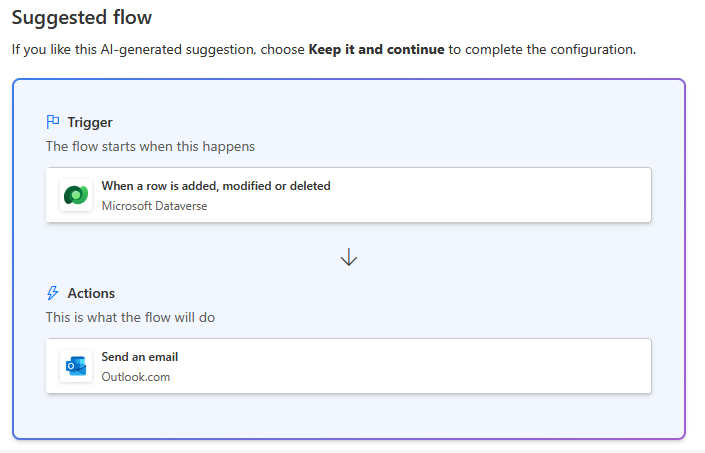
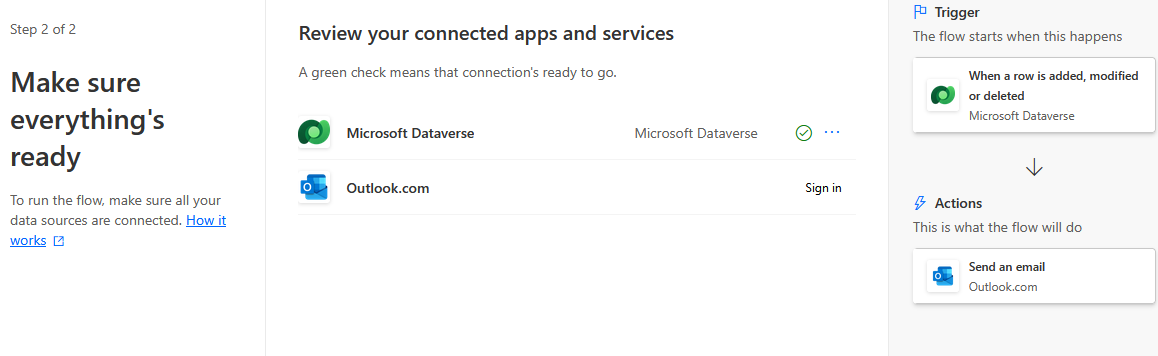
The suggested flow will now contain an action to "Send an email" using the "Outlook.com" connector instead.
In the the next step of the process, click the "Sign in" link next to the Outlook.com connector and sign in using your personal Outlook.com email address and password.
Using Gmail or a different email provider
If you prefer to use a different email provider, you can simply modify your prompt to specify the email provider you want to use. For example, if you want to use Gmail, you would use this prompt.
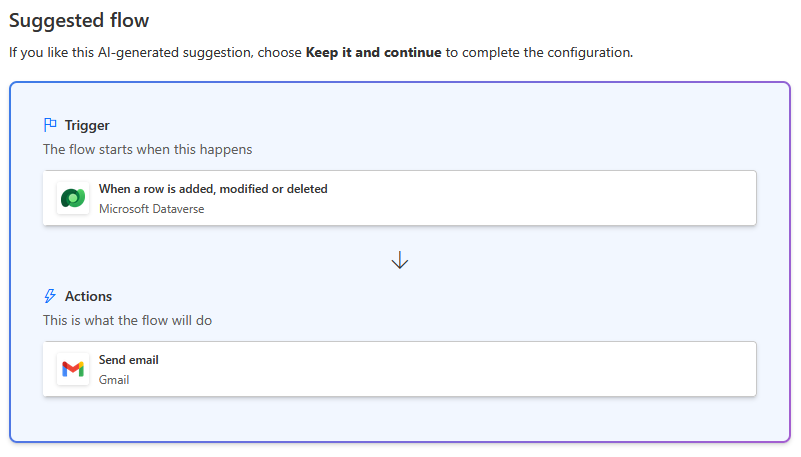
When a Dataverse loan is taken out, send an e-mail with the signature "Thank you from the Contoso library team". Send the email using the Gmail connector.
As shown below, the suggested flow will now contain an action to "Send an email" using the "Gmail" connector.
Conclusion
If you're following the Power Up program and struggling to send emails from flows, the solution is to modify your prompt to use the Outlook.com connector, or a connector for a personal email account.
