Controls - How to set default control and form values
This post covers three examples of how to set default values on data entry forms. The scenarios that we'll cover include:
- How to default values for new records
- How to set default values based on other field values
- How to set default values through the click of a button
1. Setting a default value for new records only
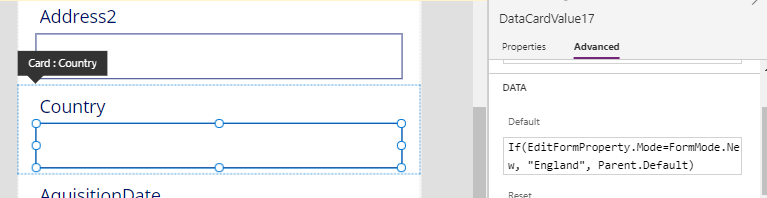
The trick to setting default value for new records only, is to build a condition that tests the Mode property of a form. When a form is in new mode, the Mode value will be FormMode.New. When the form is in edit mode, the mode value of this will be FormMode.Edit.Let’s suppose we want to setup an address entry form so that it defaults the country field to "England" for new records only. To accomplish this, we would set the default property of the text input control to the formula beneath.
If(EditForm1.Mode=FormMode.New,
   "England",
   Parent.Default
)
2. Setting a default value, based on the value of other fields
Let's imagine a data entry screen for reporting issues. The data entry fields we want to collect include issue description, create date, close date, and 'target close' date. When a user enters a create date, we want to set the 'target close' date to 7 days after the create date, only if a 'target close' date has not been entered.
To implement this requirement, we set the default value of the 'target close' date to 'create date' plus 7 days, based on the value of a Boolean variable. When the user modifies the 'create date', we set this variable to true if the 'target close' date field is currently emtpy.To build this feature, we must initialise the variable to
false when the screen loads. Here's the formula that we would add to
the OnVisible property of the screen.
UpdateContext({locSetDefaultTargetDate:false})Note that we should apply this same formula to reset the variable
after a user saves the record (eg, in the
OnSuccess property of a form, or after a call to Patch).
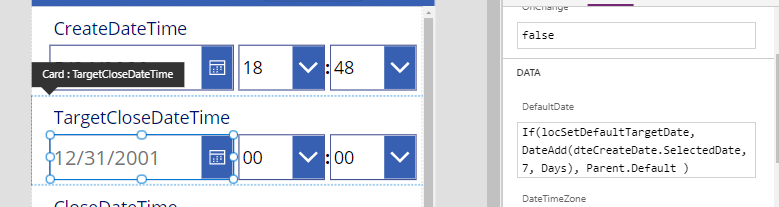
Next, we can set the default property of the 'target end date' control using the formula beneath.
If(locSetDefaultTargetDate,
   DateAdd(dteCreateDate.SelectedDate, 7, Days),
   Parent.Default
)
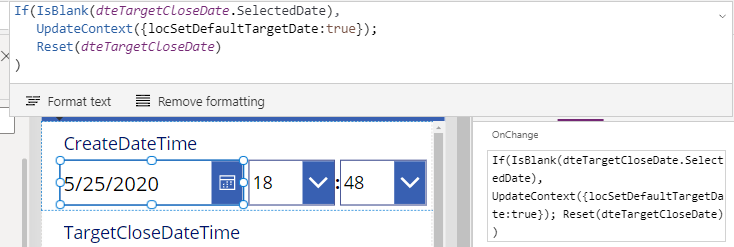
Finally, we can add the logic to set the variable to true by adding the formula beneath to the OnChange property of the 'create date' control.
If(IsBlank(dteTargetCloseDate),
   UpdateContext({locSetDefaultTargetDate:true});
   Reset(dteTargetCloseDate)
)
3 - Setting a default value when a user clicks a button
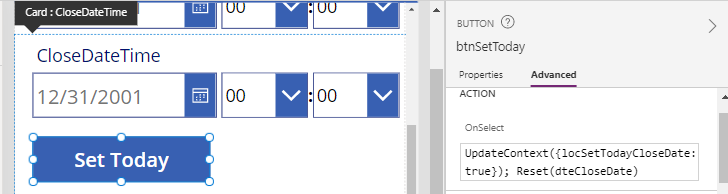
As a logical extension of the above, we can add a button to apply a default value, rather than to apply a default value through the OnChange property of another control.As an example, let’s suppose we want to add a button that sets the 'close date' to todays date. To build this feature, we initialise a varialbe to false through the OnVisible property of the screen. Here's the formula we would use.
UpdateContext({locSetTodayCloseDate:false})As in the previous example, we should apply the same formula to reset the variable after the user saves the record (eg, in the
OnSuccess property of a form, or following a call to Patch).
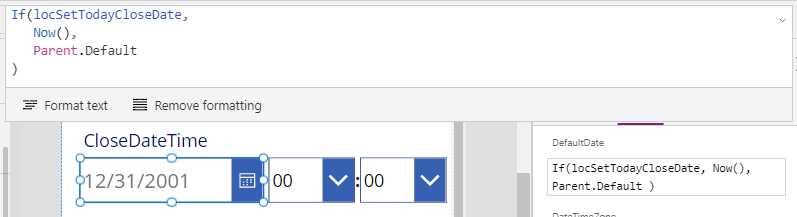
Next, we can set the default property of the 'close date' date input control to the following formula:
If(locSetTodayCloseDate,
   Now(),
   Parent.Default
)
Finally, we can add a button, and apply the following formula to the OnSelect property.
UpdateContext({locSetTodayCloseDate:true});
Reset(dteCloseDate)